Think in layers
Stack, group and style without losing track.
Rename a layer, lock it, then unlock it.
In this lesson 3 steps + optional extras
Open Layers. Think of them as transparent sheets stacked on your shirt: upper layers can cover lower ones.
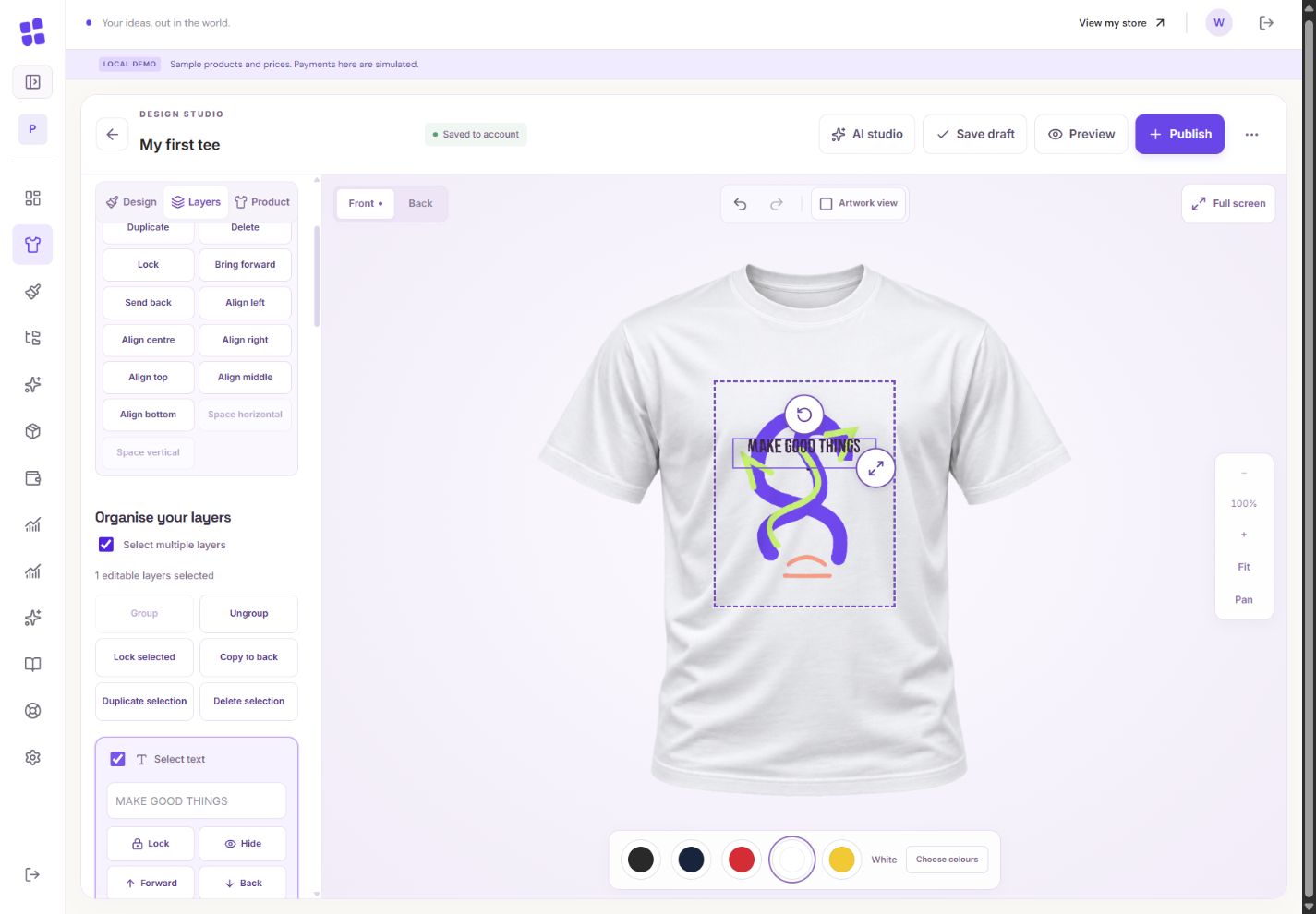
- 1Select more than one layer to move or group them together.
- 2Lock finished parts so they do not move accidentally.
- 3Copy the selected design to the other side; review its placement there.
What you should seeThe list shows the individual layers on the selected side.
Rename layers so you recognise them. Use ordering controls or drag to reorder; keyboard alternatives are available.
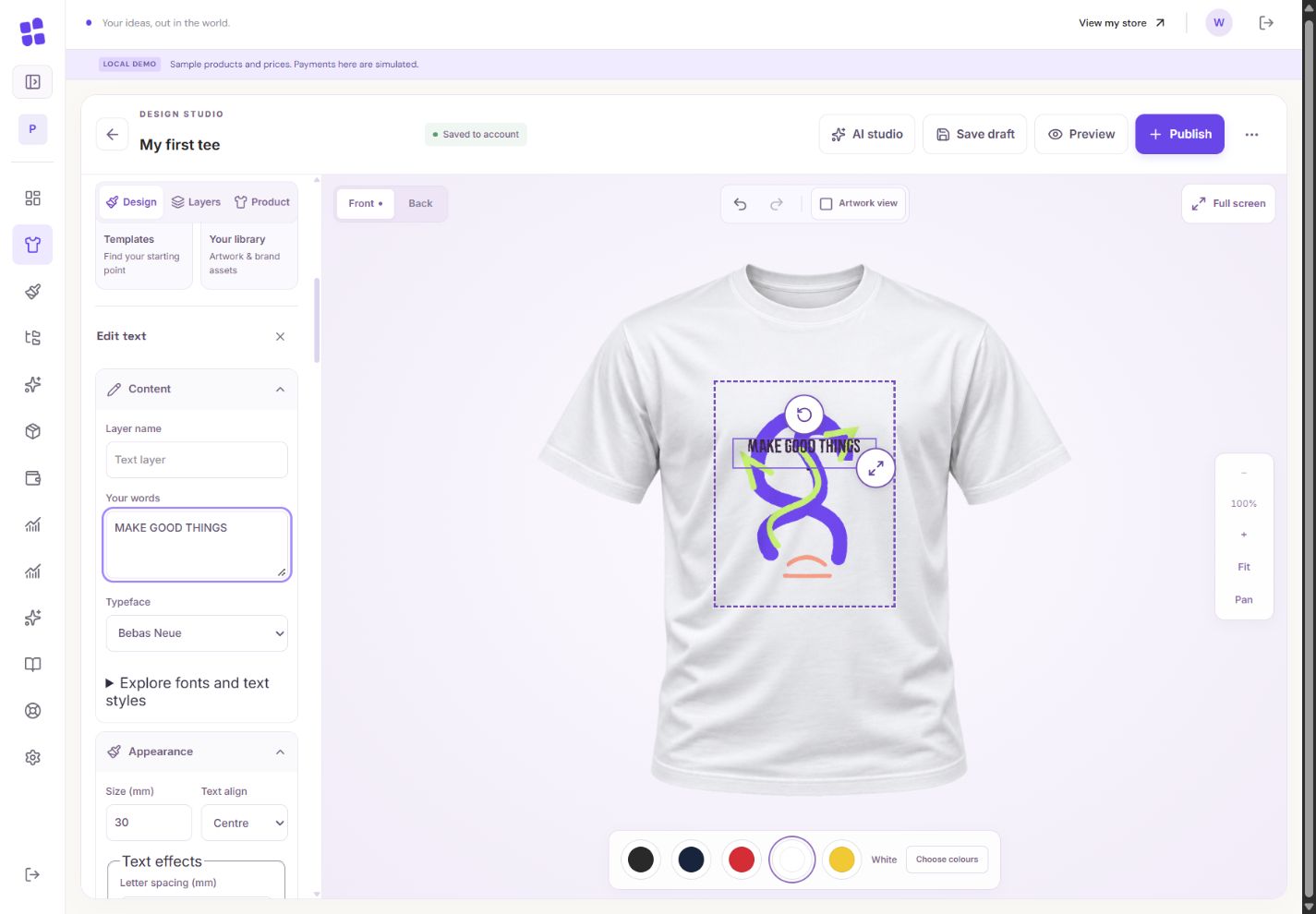
- 1Type your own words. They remain editable text layers.
- 2Choose a bundled font; the print renderer uses the same font.
- 3Undo reverses your last completed edit.
What you should seeClear names and ordering help you identify which layer sits above another.
Lock a layer to prevent accidental changes. Hide it to leave it out of the print; hidden is different from deleted.
What you should seeLocked layers stay visible; hidden layers are excluded from printing.
Go further 4 optional topics
You have the core task. Explore these extra tools whenever you need them.
Select several layers to group or transform them together. Align or distribute a selection for consistent spacing.
What you should seeYour selected group moves together; alignment/distribution acts on that selection.
Duplicate a selection or copy it to the other side. Check its destination and placement rather than assuming front and back match.
What you should seeA copy appears on the chosen side and can be checked separately.
For text, explore letter spacing, line spacing, outlines and single-line curves. Use actual bundled styles and keep lettering readable.
What you should seeThe lettering reflects your chosen outline, spacing or curve.
Completed editing gestures form Undo steps. Click a text field before typing so canvas shortcuts do not move your design.
What you should seeUndo reverses the completed editing gesture.
Give it a try.
Rename a layer, lock it, then unlock it.
Open the designer, then Layers Opens separately. Paid and destructive actions are never required to complete a lesson.You keep moving the background while editing a title. What helps?
Optional. No grades, no locked lessons.Ready to mark this one complete?
You choose when you have learned enough. No quiz score or business action is required.
Loading progress…
Sign in to save progress across devices