Give each link a useful destination
Product pages, categories, campaigns and sharing previews.
Open Search & sharing and inspect a preview without changing it.
In this lesson 2 steps + optional extras
Open Search & sharing. Choose the correct store, product, category or campaign, wait for its fields to load, then edit the title, description and approved share image.
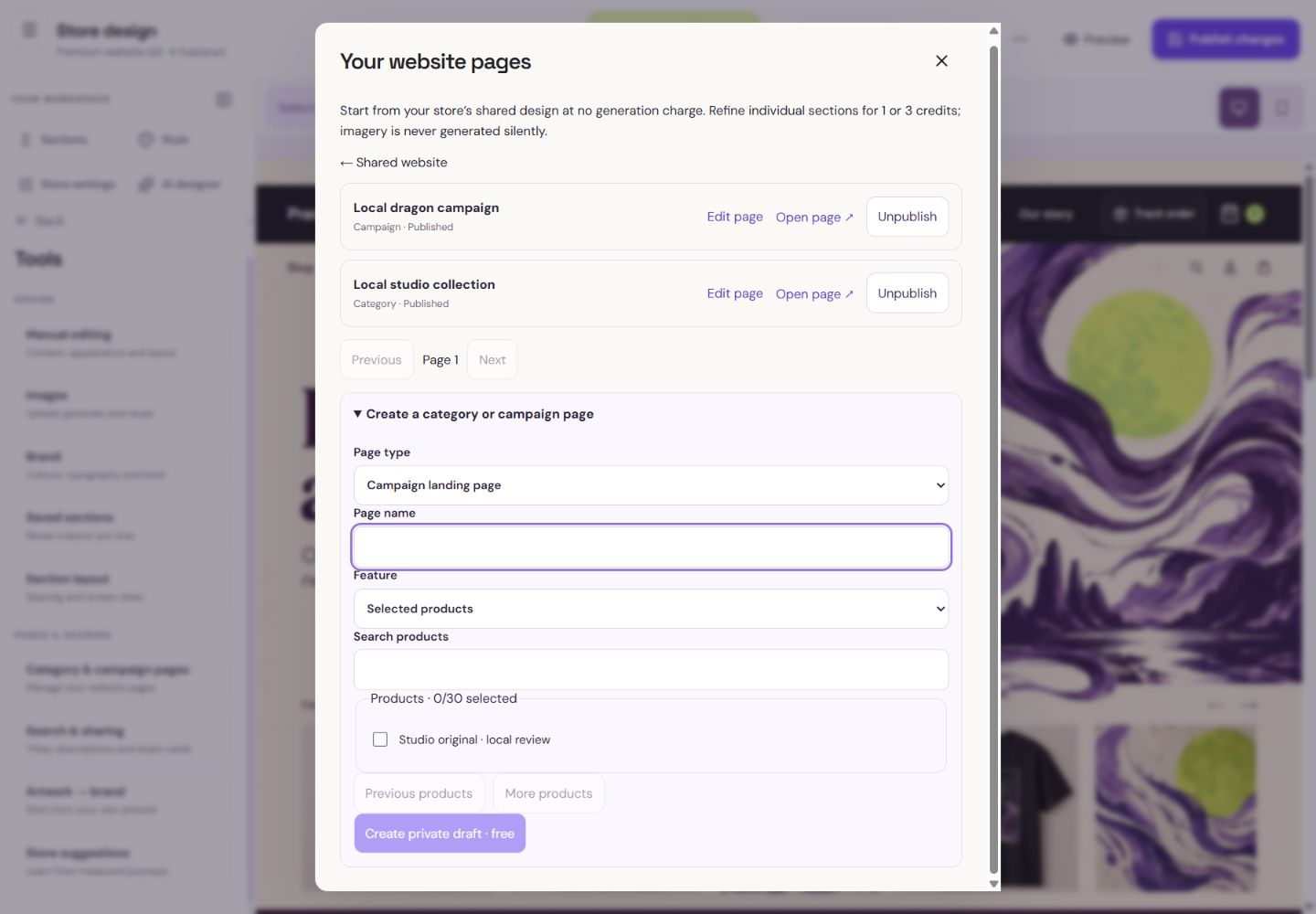
- 1Choose a category page or a campaign.
- 2Name the page so you can find it again.
- 3Use real products, a category or an existing drop.
What you should seeThe selected metadata fields belong to the correct loaded target.
Inspect the search and social previews, then Save. These previews illustrate your metadata; search engines and social platforms decide their actual display and timing.
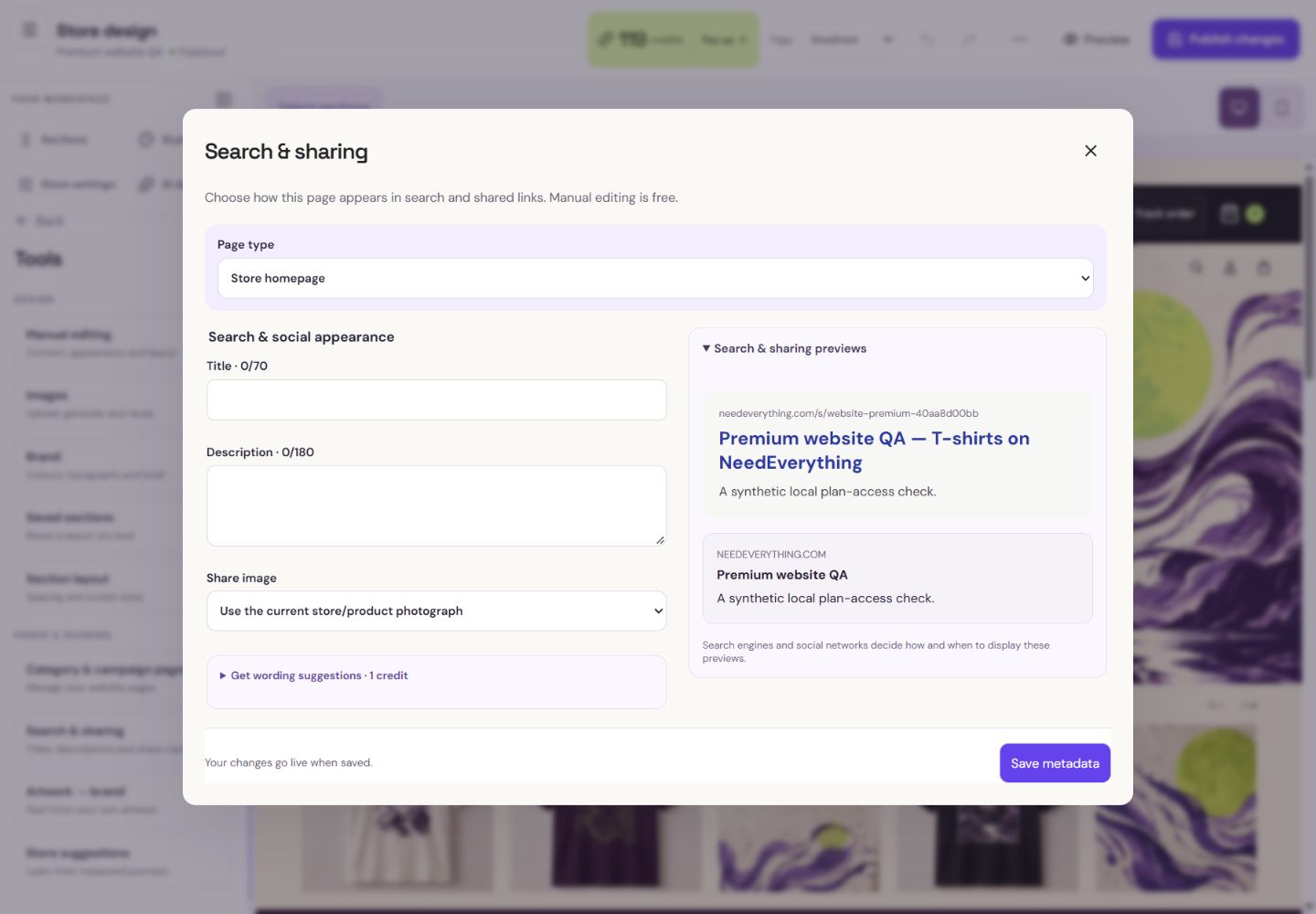
- 1Choose the exact page before editing.
- 2Write a short, accurate title.
- 3Metadata becomes live only when you save it.
What you should seeThe saved title/description can be inspected in example search and social cards.
Go further 4 optional topics
You have the core task. Explore these extra tools whenever you need them.
Use the Page control in Store design for shared product-page design or an individual product override. Shared edits preserve explicit overrides.
What you should seeThe page target distinguishes shared design from an explicit product override.
Reset to shared design previews the replacement before saving. Review the target so one product’s wording does not end up on another.
What you should seeThe reset preview shows what shared content will replace the override.
Category pages can have their own introduction and layout. Campaign pages select real products, a category or an existing drop while retaining access to the whole store.
What you should seeThe page uses real products/categories/drops with the store branding.
Unpublishing a campaign does not archive its products or reopen a drop. Actual product prices and availability stay controlled by the store.
What you should seeCampaign unpublishing changes the page, not the selected products.
Words made simple
- publish
- Make the reviewed changes visible on your public store.
Give it a try.
Open Search & sharing and inspect a preview without changing it.
Open Store design Opens separately. Paid and destructive actions are never required to complete a lesson.A product has an explicit page override. What happens after a shared page update?
Optional. No grades, no locked lessons.Ready to mark this one complete?
You choose when you have learned enough. No quiz score or business action is required.
Loading progress…
Sign in to save progress across devices