Find the sweet spot
Use placement tools instead of eyeballing every millimetre.
Your task
Reviewed 2026-11-03 · free to learnCentre one layer, try a placement preset, then Undo once.
In this lesson 3 steps + optional extras
1
Select the layer you want to adjust. A visible outline tells you what will move; clicking empty space clears the selection.
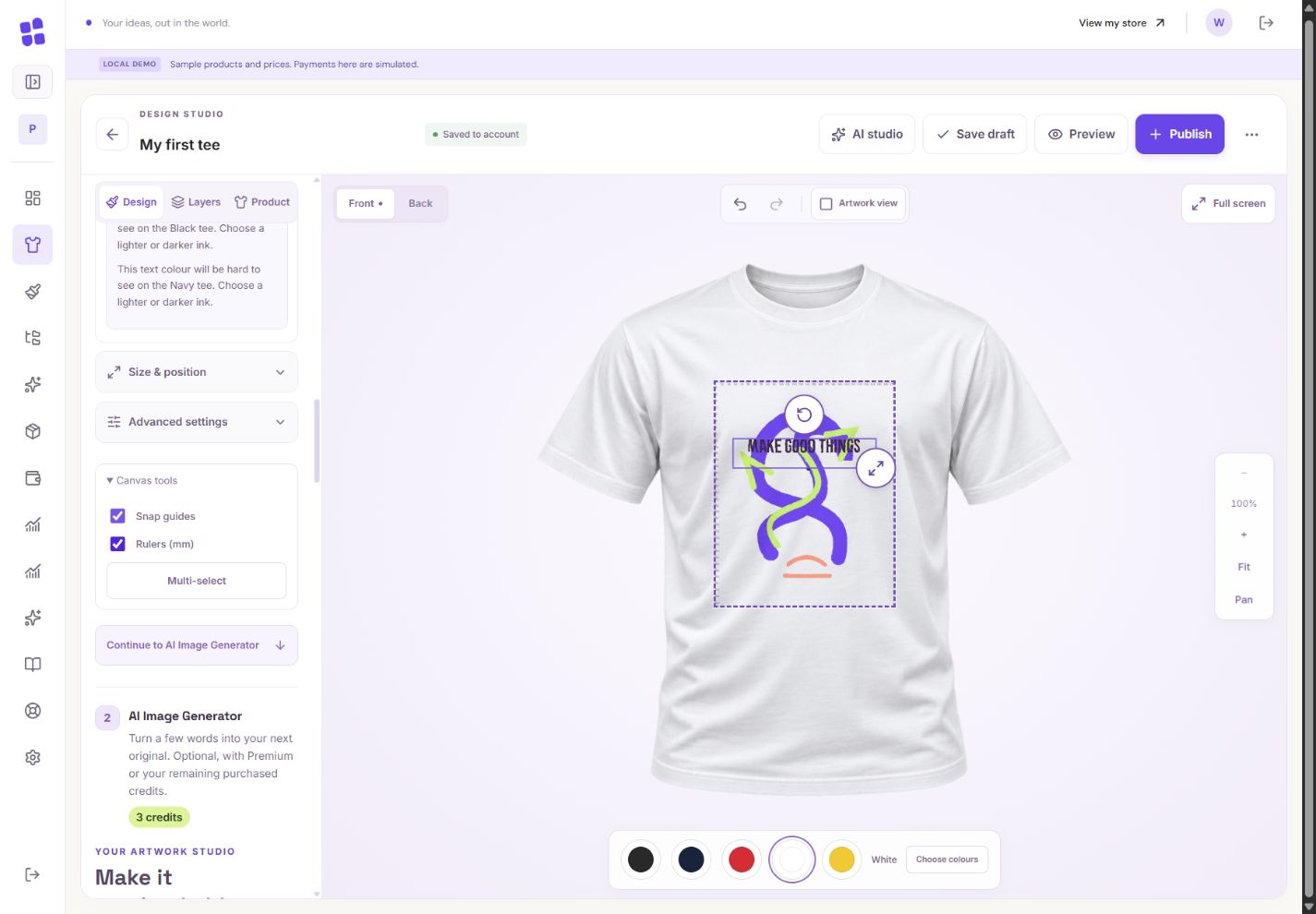
- 1Snap guides help line up the centre and edges.
- 2Rulers show physical print dimensions, not screen pixels.
- 3Artwork view shows the design without the garment photograph.
What you should seeThe outline identifies the layer you will change.
2
Use size and position controls for precise dimensions, rotation for an angle, and Undo if the result is not right.
What you should seeThe physical size and angle match the values you chose.
3
Zoom and Pan change your view, not the physical printed size. Fit brings the canvas back into view. Artwork view helps inspect the flat design.
What you should seeThe view changes while the actual print dimensions stay the same.
Go further 2 optional topics
You have the core task. Explore these extra tools whenever you need them.
↗
Use centre and edge snapping, alignment guides and optional millimetre rulers to line things up. Arrow keys nudge a selected object when you are not typing.
What you should seeGuides help you align the selection without guessing.
↗
Try a placement preset such as left chest, centred front or large back. It acts on the selection and keeps it within the approved area.
What you should seeThe selected artwork fits the approved preset area.
YOUR TURN · OPTIONAL
Give it a try.
Centre one layer, try a placement preset, then Undo once.
Open the product designer Opens separately. Paid and destructive actions are never required to complete a lesson.The print dimensions are right, but the canvas looks small. What helps?
Optional. No grades, no locked lessons.Ready to mark this one complete?
You choose when you have learned enough. No quiz score or business action is required.
Loading progress…
Sign in to save progress across devices