Start with a template or bring sharp SVG art
A head start that still feels like you.
Preview one template without applying it.
In this lesson 2 steps + optional extras
Open Templates, search or browse, and preview the front and back before applying. Replacing a nonempty layout asks for confirmation.
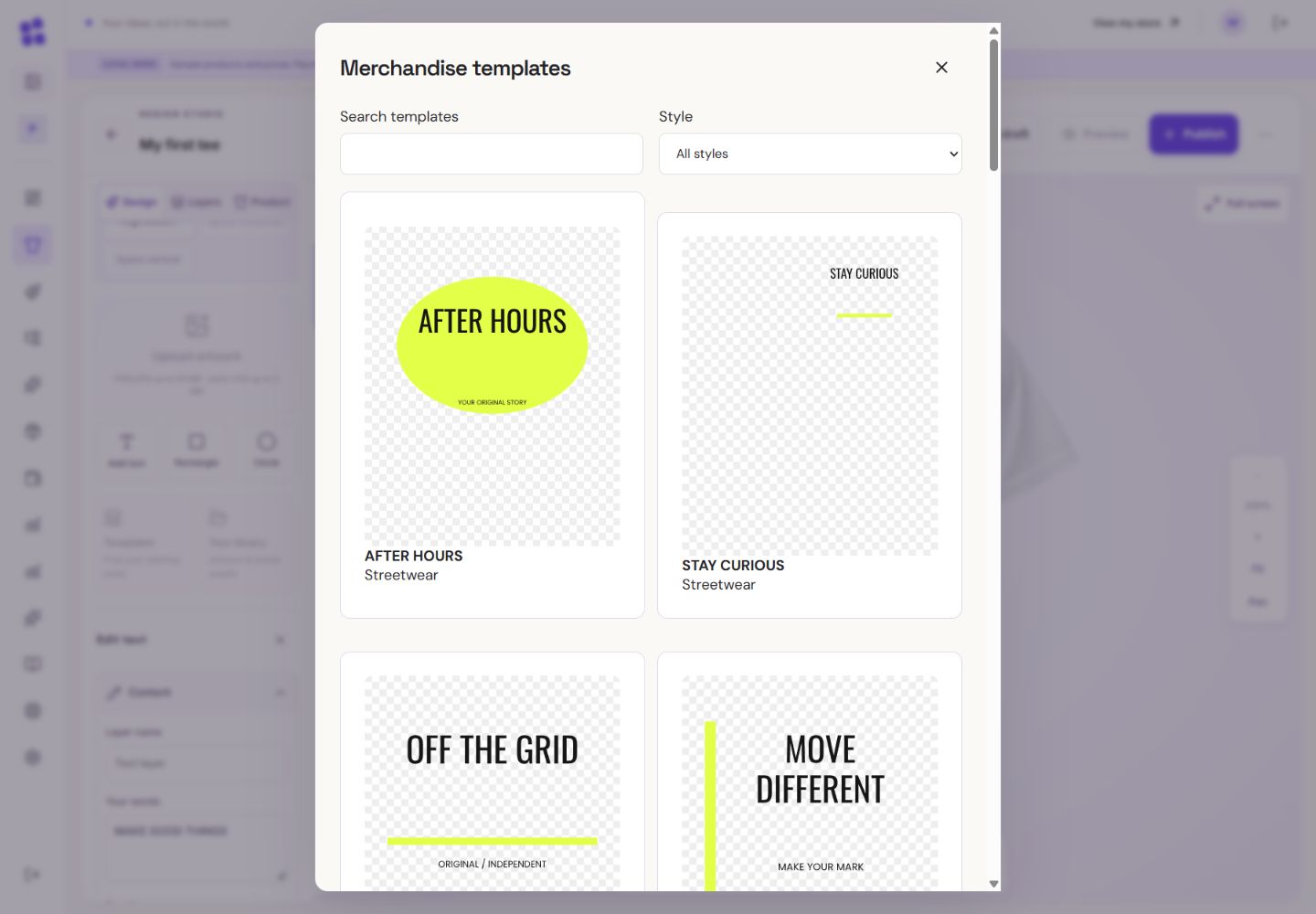
- 1Search for a mood or title, then preview a template.
- 2Filter by style. Applying a template replaces the layout, so check both sides first.
What you should seeYou can inspect both sides before replacing any existing layout.
A template changes the layout, not your product name, price or offered colours. Applying it is one Undo action.
What you should seeUndo can return to the previous layout without changing the product details.
Go further 3 optional topics
You have the core task. Explore these extra tools whenever you need them.
If print profiles differ, use the explicit fit-to-area option. Do not assume artwork dimensions transferred unchanged.
What you should seeA profile mismatch is handled through the explicit fit-to-area choice.
Upload a static SVG for vector artwork. Convert SVG text to outlines first; scripts, embedded bitmap images and external resources are not accepted.
What you should seeThe SVG uploads as a single sharp artwork layer or shows a specific validation error.
Use supported colour replacement for solid fills and strokes. An SVG is one artwork layer here, not a collection of editable path nodes.
What you should seeSupported fill/stroke colours can be replaced without editing individual nodes.
Give it a try.
Preview one template without applying it.
Open the product designer Opens separately. Paid and destructive actions are never required to complete a lesson.You want to try a template on a nonempty draft. What should happen?
Optional. No grades, no locked lessons.Ready to mark this one complete?
You choose when you have learned enough. No quiz score or business action is required.
Loading progress…
Sign in to save progress across devices