Choose images and compare before you publish
Keep the useful parts and check the result.
Open a comparison or the Checks panel and inspect one finding.
In this lesson 3 steps + optional extras
Select an image destination and choose upload, library reuse or the separately confirmed graphic-generation action. Manual replacement and cropping are free.
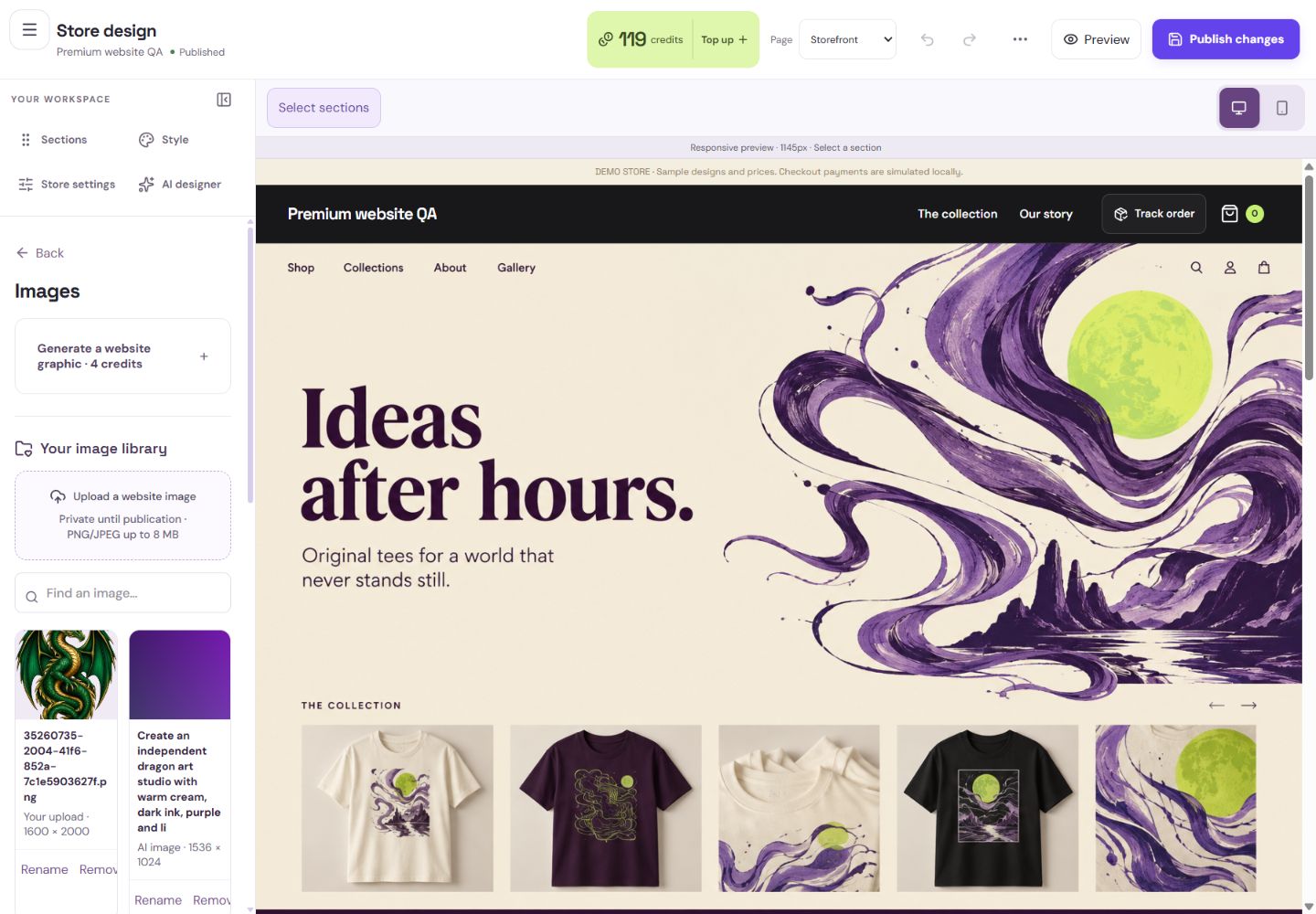
- 1Upload your own graphic here.
- 2Find an existing image to reuse for free.
What you should seeThe target image receives your explicit replacement or separately quoted generation.
Open the review checks and inspect desktop/phone widths. Follow findings for overflow, missing images, empty links, headings, alt text and contrast.
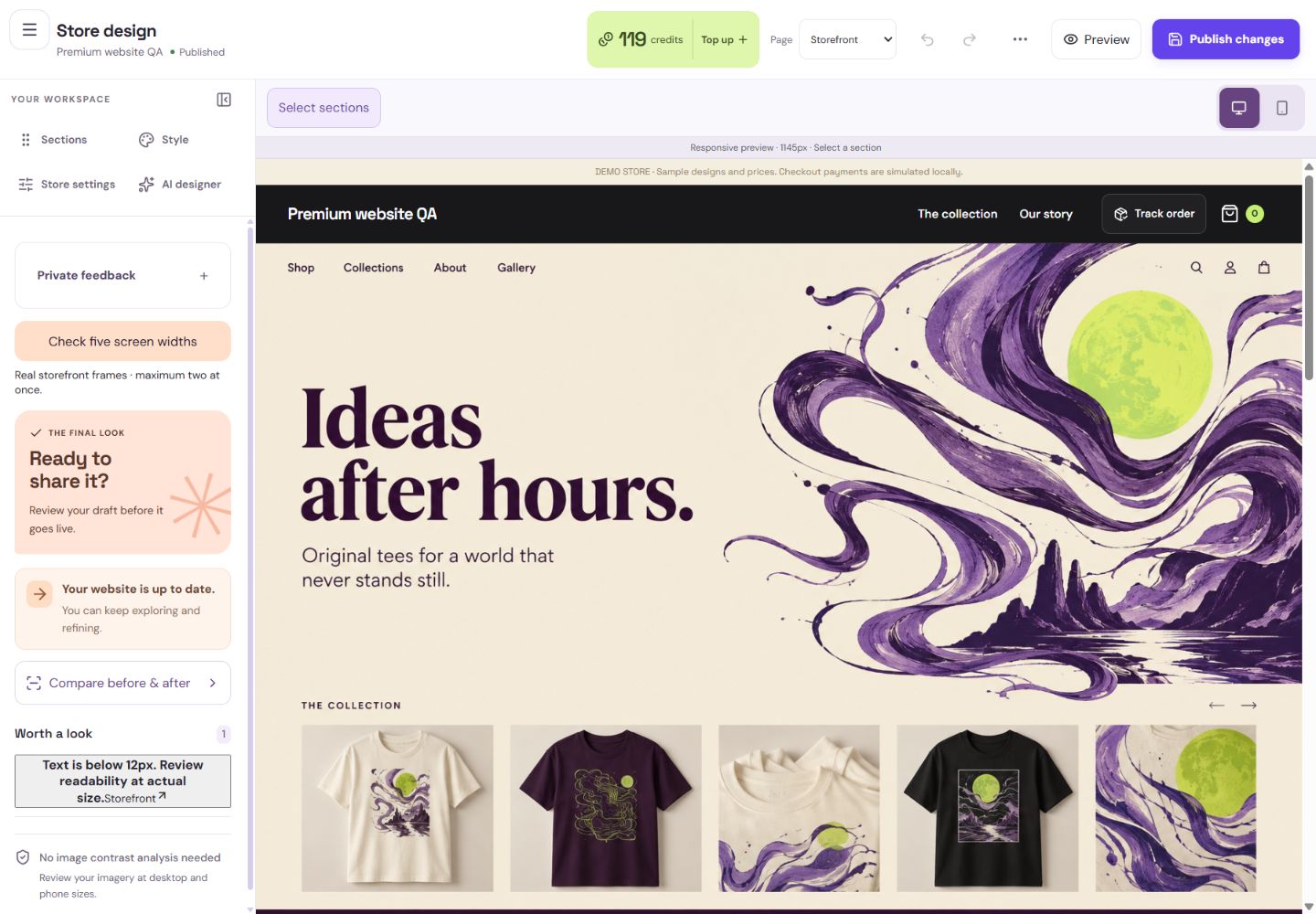
- 1Check real layouts at several widths.
- 2Compare the current published website with your draft.
- 3Select a finding to inspect the affected section.
What you should seeFindings identify the affected element at the tested widths.
A failed analysis is an unavailable check, not a pass. Check the actual page and publish only when you are ready.
What you should seeAn unavailable analysis is labelled clearly instead of being treated as a pass.
Go further 3 optional topics
You have the core task. Explore these extra tools whenever you need them.
Name private website images so you can find them again. Referenced images may be protected from removal while drafts, history or published pages use them.
What you should seeA named library item can be found again; referenced images stay protected.
Use Brand to save audience, tone, palette and image guidance. Applying a brand change is explicit and undoable.
What you should seeBrand choices are stored for reuse and applied only when you choose.
Compare Before and After for wording, style, arrangement and images. Keep dependent changes together and respect your pins.
What you should seeThe comparison identifies wording, appearance, arrangement and image changes.
Words made simple
- draft
- A private saved copy. Shoppers cannot see these changes yet.
- publish
- Make the reviewed changes visible on your public store.
Give it a try.
Open a comparison or the Checks panel and inspect one finding.
Open Store design Opens separately. Paid and destructive actions are never required to complete a lesson.A visual check failed to run. What does that mean?
Optional. No grades, no locked lessons.Ready to mark this one complete?
You choose when you have learned enough. No quiz score or business action is required.
Loading progress…
Sign in to save progress across devices