Make your banner fit beautifully
Keep the image intact and the wording readable.
Compare the banner in Desktop and Phone preview.
In this lesson 3 steps + optional extras
Select the banner image. Fit shows the whole generated graphic in its original proportions; Crop to fill deliberately trims it to fill the chosen shape.
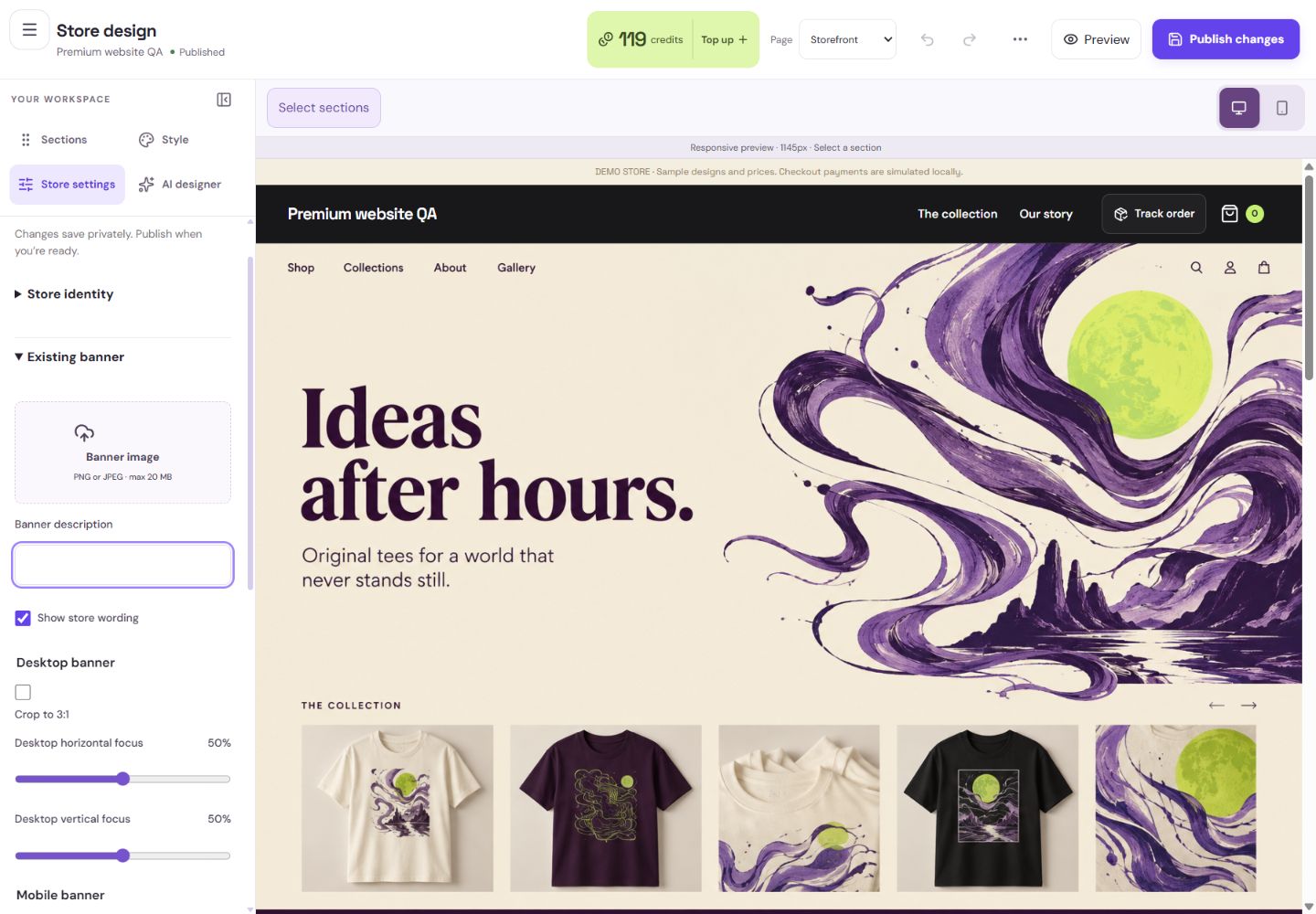
- 1Describe the image for people using screen readers.
- 2Position the desktop crop here.
What you should seeFit shows the whole graphic; Crop to fill intentionally trims edges.
Inspect Desktop and Phone separately. Adjust focal points and presentation for each, and use Reset to undo presentation changes.
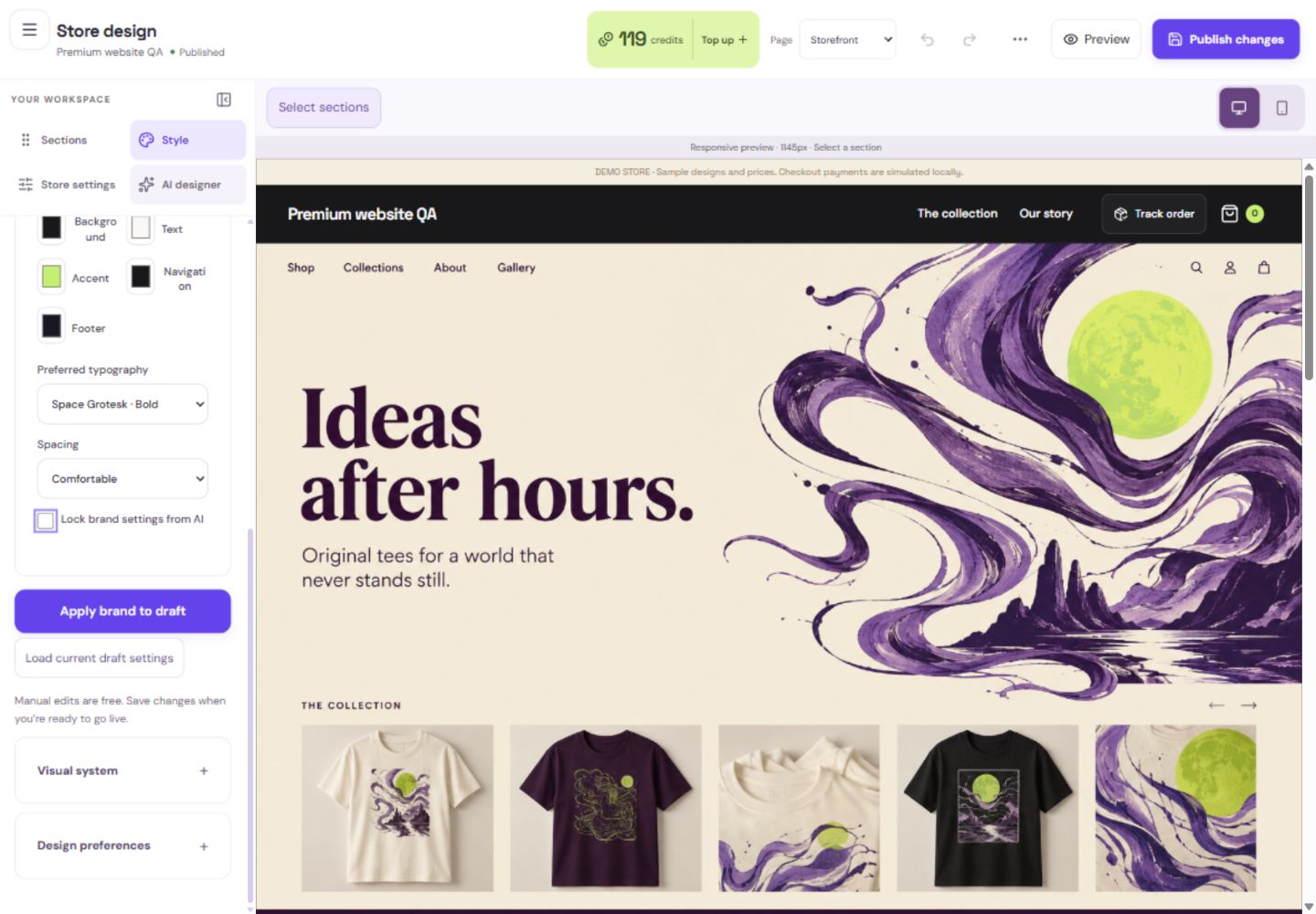
- 1Choose a supported type style for your storefront.
- 2Protect the brand settings when asking for generated changes.
- 3Apply deliberately, then publish separately when ready.
What you should seeThe two device previews retain their own presentation choices.
Add meaningful alt text for informative images. Choose an overlay and readable text colours where words sit over an image.
What you should seeAlt text, overlay and colour choices help communicate the image clearly.
Go further 3 optional topics
You have the core task. Explore these extra tools whenever you need them.
Keep headings and buttons as editable page text. Generated graphics are backgrounds or illustrations, not replacement merchandise photos.
What you should seeHeadings/buttons remain editable website elements above the graphic.
Open Style for palette, typography and spacing. Check contrast advice; image analysis may be advisory or unavailable. The store logo belongs in Store settings; changing the banner does not replace it.
What you should seeStyle choices and the separately managed logo are identifiable.
If an image is too small for the display, replace it, crop differently or display it smaller. Stretching it does not restore detail.
What you should seeThe display-size warning gives a useful replacement or smaller-display choice.
Give it a try.
Compare the banner in Desktop and Phone preview.
Open Store design → Style Opens separately. Paid and destructive actions are never required to complete a lesson.You want the entire generated banner visible. Which presentation helps?
Optional. No grades, no locked lessons.Ready to mark this one complete?
You choose when you have learned enough. No quiz score or business action is required.
Loading progress…
Sign in to save progress across devices