Turn your private draft into your storefront
Name it, link it, then review what will go live.
Inspect the Orbit identity settings and all-page publication review. Close the review to keep practising privately.
In this lesson 3 steps + optional extras
Open Store settings. For the practice, use Orbit Studio as the store name and keep all contact details fictional. Edit identity, logo, wording and footer links; changing the store address is a separate explicit action.
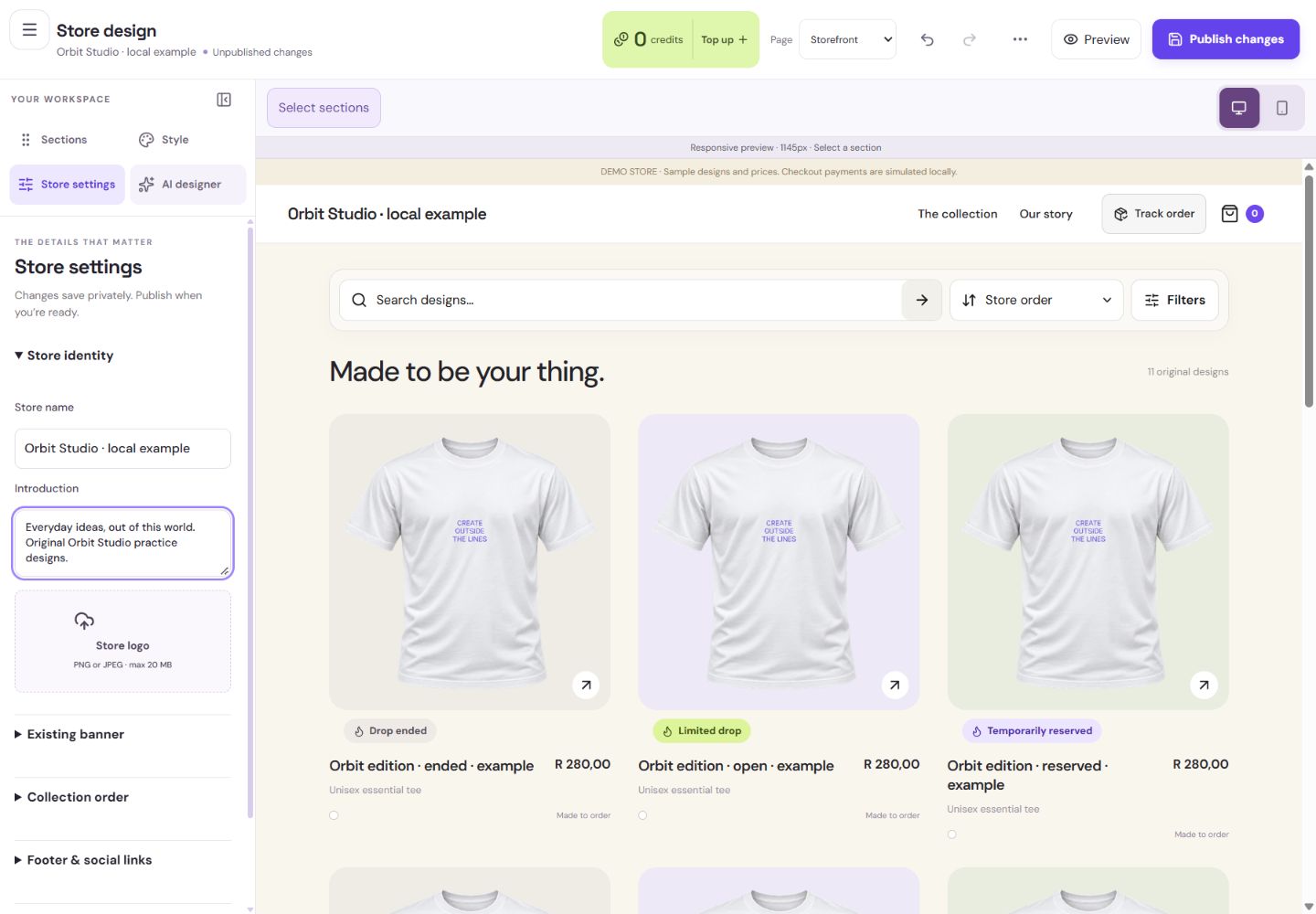
- 1Use a recognisable store name. This example is fictional.
- 2Store wording is saved privately first. Publishing is a separate reviewed action.
What you should seeStore settings shows identity and footer fields; the address action is separate.
Wait for Draft saved. Unpublished changes means the private account copy differs from the live website.
What you should seeDraft saved confirms persistence; unpublished changes are still private.
Choose Publish changes to see all included changed pages and shared settings. Image preparation or a version conflict leaves the existing website live.
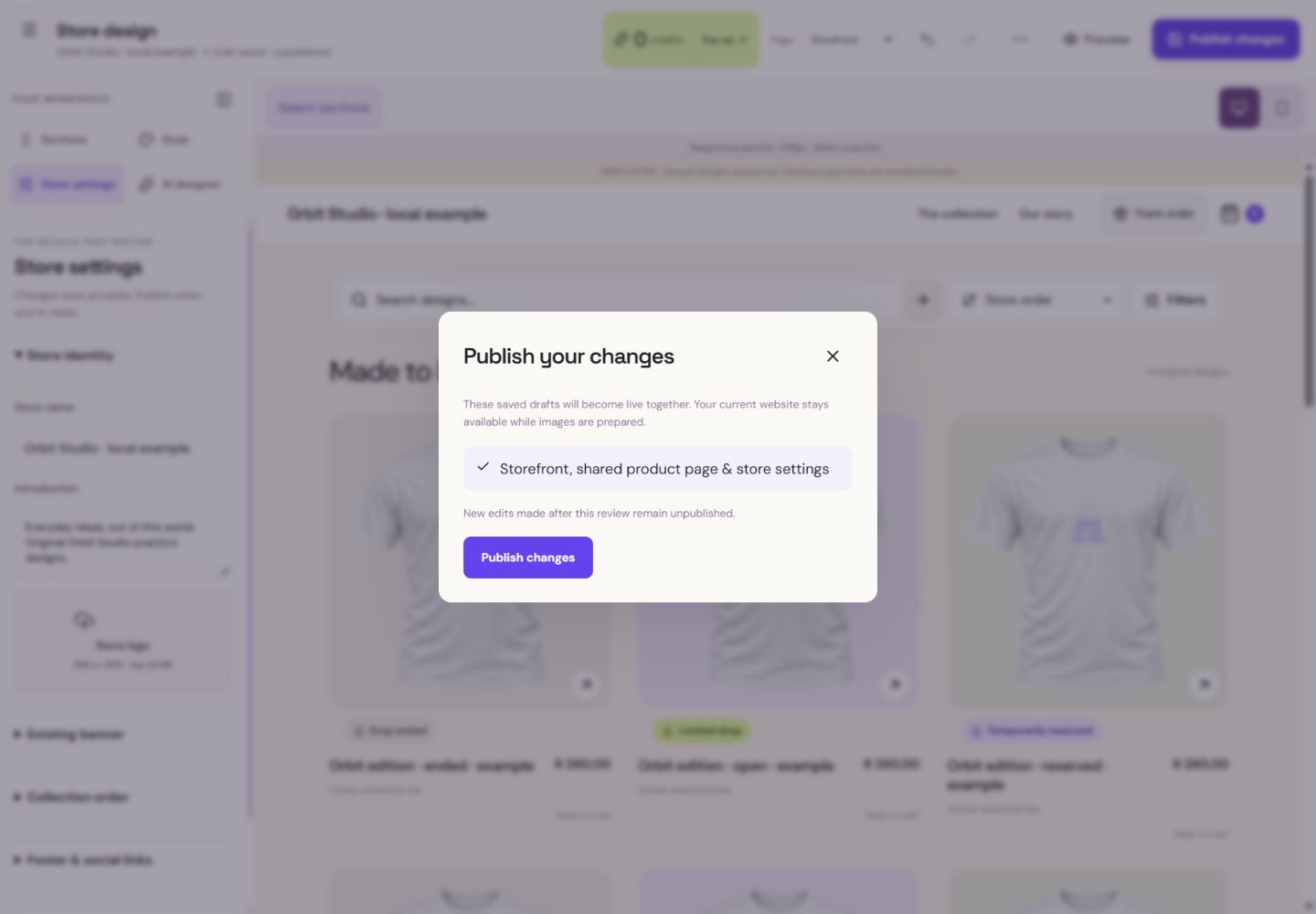
- 1Review every changed page and shared setting included in this publication.
- 2This is the final live-publication action. Close the dialog to keep the practice private.
What you should seeThe publication review lists every captured page and shared setting.
Go further 3 optional topics
You have the core task. Explore these extra tools whenever you need them.
Use Preview to inspect the actual storefront layout. Preview shopping is isolated; it must not place real orders.
What you should seeThe preview reflects your saved and unsaved layout without placing an order.
Confirm only after checking the captured changes. Edits made after that review remain unpublished.
What you should seeOnly the reviewed changes become live; newer edits stay private.
Use More for history and restore tools. Restoring opens an editable draft; publish separately. Copy your store link from Overview when ready to share.
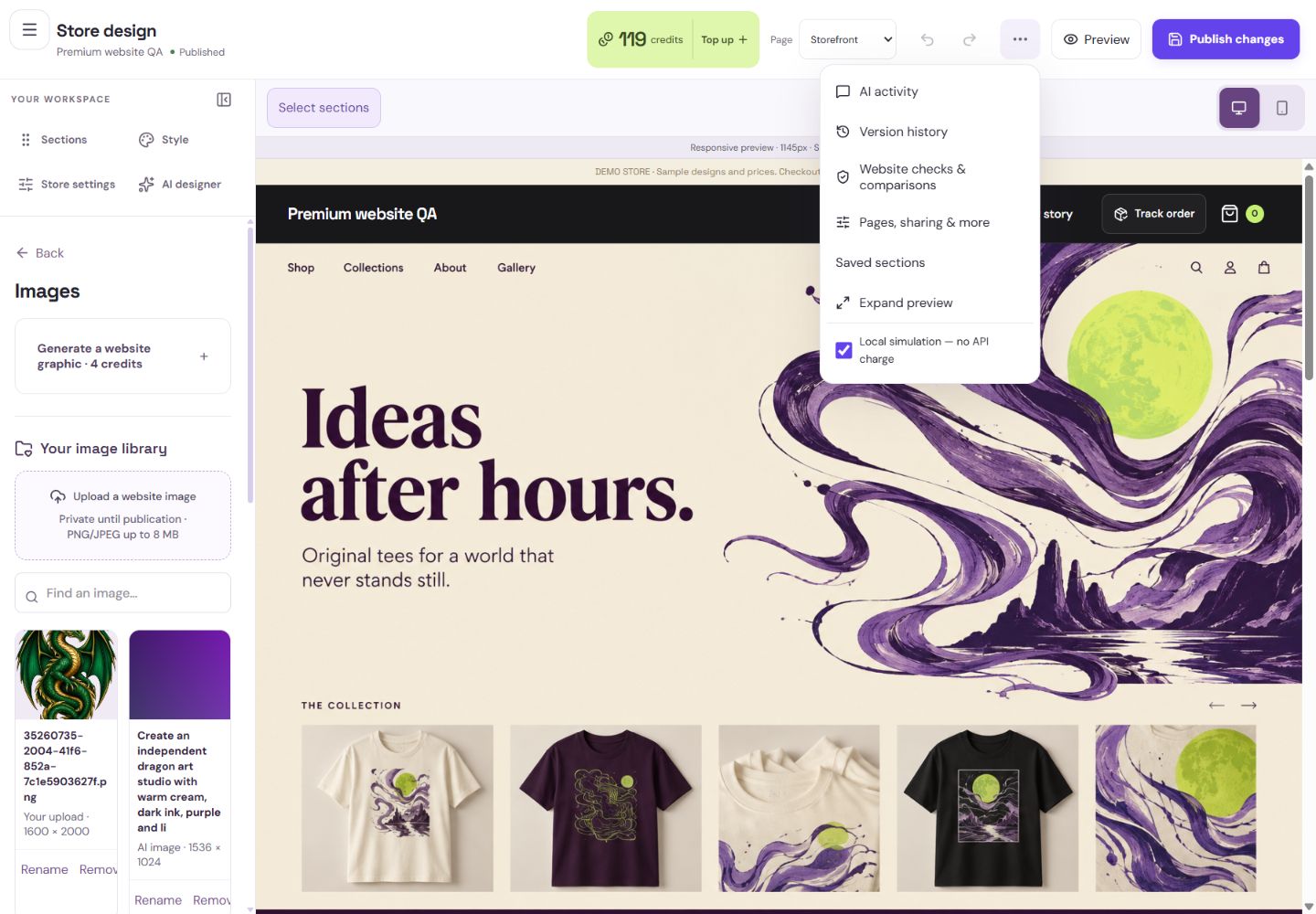
- 1Restore an older version into a private draft.
- 2Find page overrides, sharing and private feedback here.
What you should seeRestored work opens as a private draft for review.
Words made simple
- draft
- A private saved copy. Shoppers cannot see these changes yet.
- publish
- Make the reviewed changes visible on your public store.
Give it a try.
Inspect the Orbit private settings and publication review, then close it without publishing.
Open Store design → Store settings Opens separately. Paid and destructive actions are never required to complete a lesson.The editor says Draft saved and Unpublished changes. What can shoppers see?
Optional. No grades, no locked lessons.Ready to mark this one complete?
You choose when you have learned enough. No quiz score or business action is required.
Loading progress…
Sign in to save progress across devices