Stay in control of renewal
Know what cancellation changes—and what it does not.
Locate the renewal date and billing-management controls without changing them.
In this lesson 3 steps + optional extras
Review your subscription status and paid-through date in Plan & credits. Access starts from verified payment, not merely a browser return.
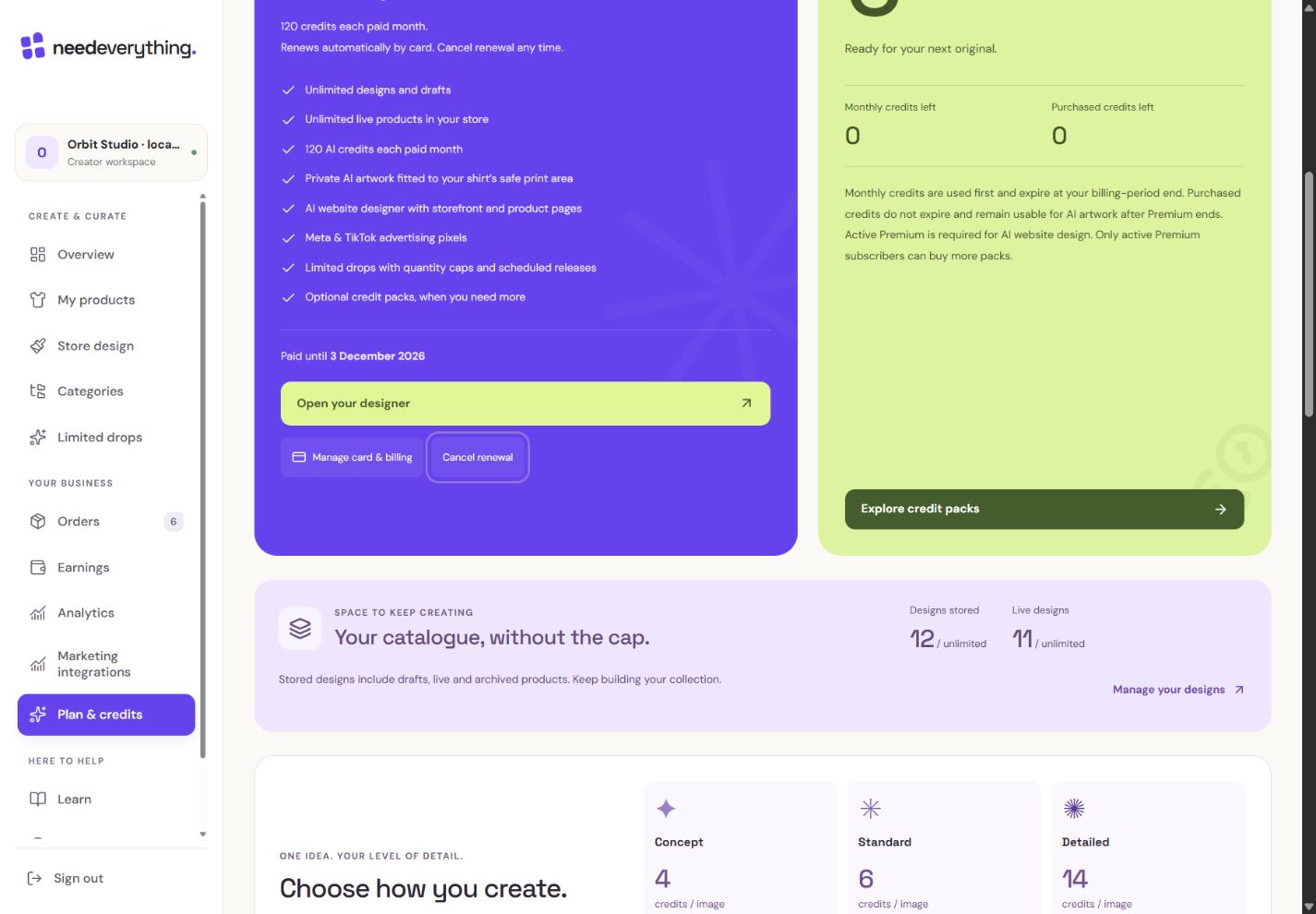
- 1The paid-through date tells you how long the current period lasts.
- 2Cancel renewal stops future renewal. The local example does not make or cancel a real payment.
What you should seeThe status shows the paid-through date and renewal state.
Use manage-billing or cancel-renewal controls when available. Cancellation stops future renewal and preserves access through the paid period.
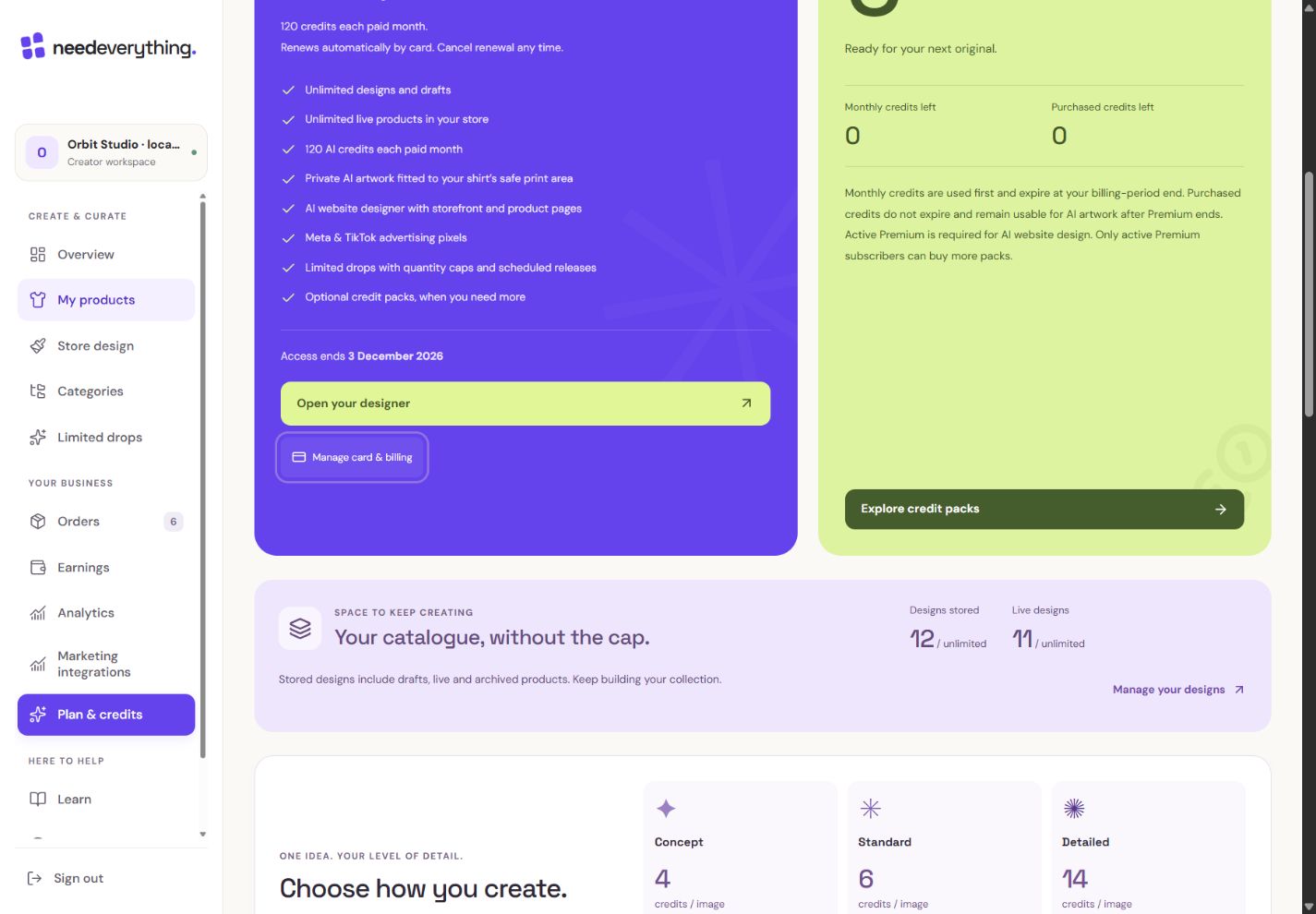
- 1Access ends at the paid-through date. Cancelling renewal does not erase this period.
- 2Billing management remains available. The renewal-cancellation button is gone after the local mocked result.
What you should seeAfter cancellation, renewal stops while access continues to the displayed date.
Purchased credits remain recorded, subject to their use rules and any payment review. Refunded or disputed payments cannot fund new generation.
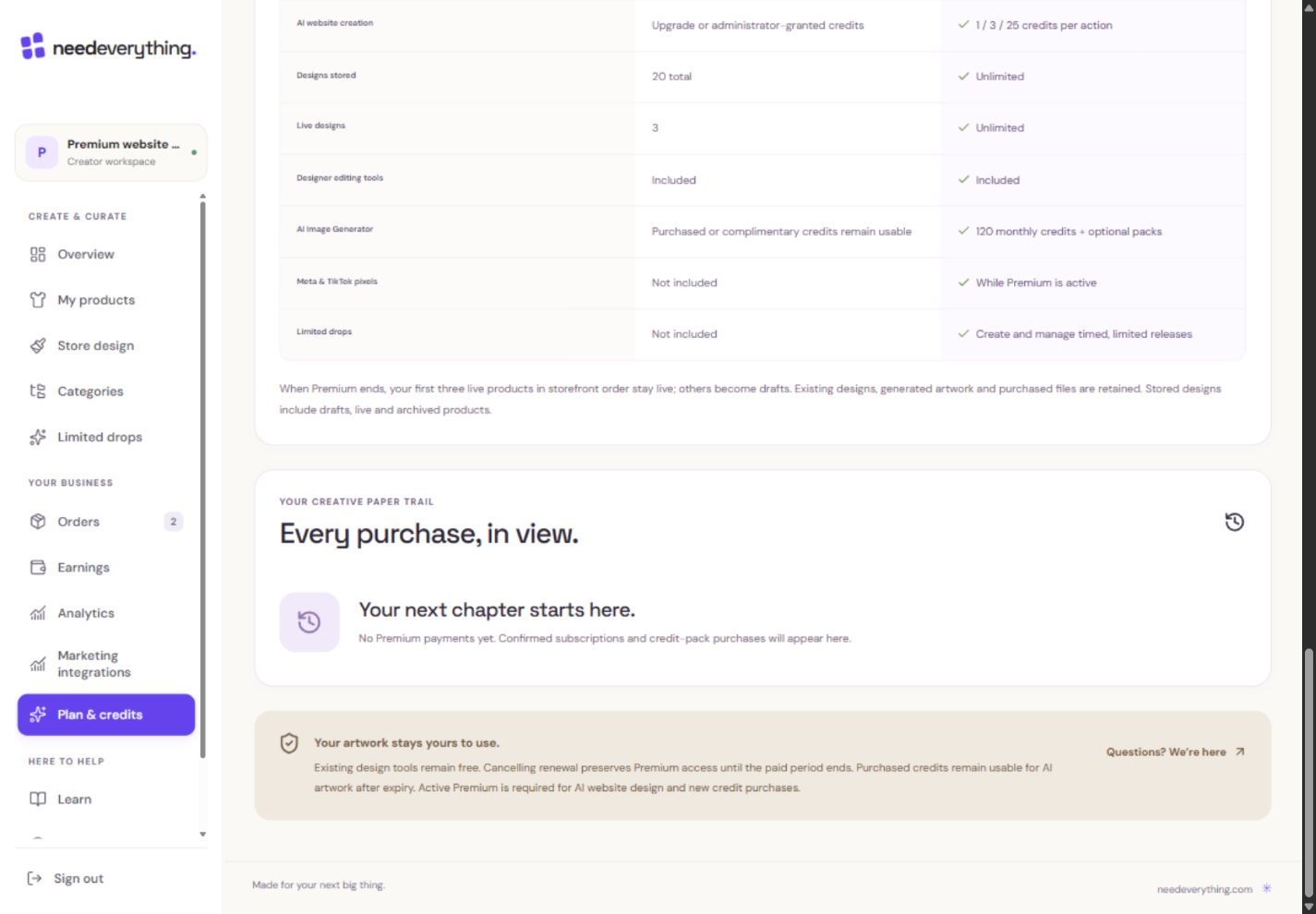
- 1Confirmed subscriptions and packs appear here. This local example has no real payments.
- 2Ask support about a payment; never include card details or passwords.
What you should seePurchased credits remain recorded, subject to their funding/use rules.
Go further 3 optional topics
You have the core task. Explore these extra tools whenever you need them.
A failed renewal pauses paid access when that period ends. It does not delete your previously generated artwork.
What you should seeArtwork is retained if a renewal fails.
If an account/store is closed, billing cancellation should remain accessible. Contact support when status or payment checks needs attention.
What you should seeManagement remains available or support can investigate a billing mismatch.
You can finish this lesson by reading the controls. Do not purchase or cancel a real subscription just to earn a badge.
What you should seeNo real subscription change is required to finish this lesson.
Words made simple
- verified
- Confirmed by the relevant account or document check.
Give it a try.
Locate the renewal date and billing-management controls without changing them.
Open Plan & credits Opens separately. Paid and destructive actions are never required to complete a lesson.You cancel renewal during a paid period. What should the page show?
Optional. No grades, no locked lessons.Ready to mark this one complete?
You choose when you have learned enough. No quiz score or business action is required.
Loading progress…
Sign in to save progress across devices