Save privately. Publish deliberately.
These buttons do different jobs.
Confirm that Orbit tee is saved privately, inspect the publication review, then choose Keep editing.
In this lesson 3 steps + optional extras
Saving draft keeps work in your account. Wait for Saved to account; browser recovery is helpful, but it is not the same as a confirmed account save.
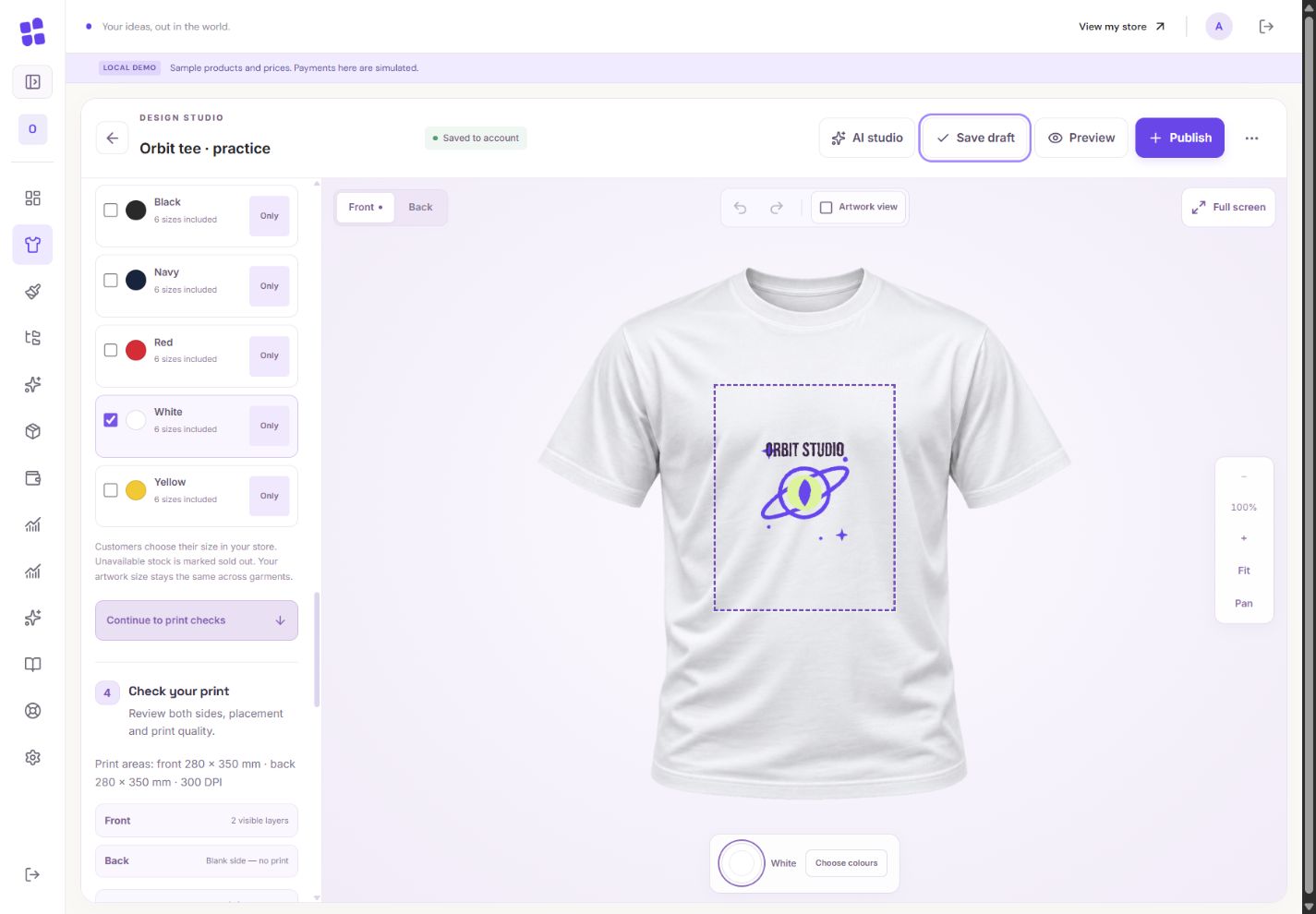
- 1A clear draft name helps you find the same project later.
- 2This confirms private account persistence. It is separate from publishing.
- 3Save draft keeps work private. Publication has its own review and confirmation.
What you should seeSaved to account confirms your private draft is stored.
Set your profit and offered colours in Product settings. Read the resulting selling price; shipping is quoted separately.
What you should seeThe displayed selling price reflects your markup and offered colours.
Choose Publish to open review. Inspect front/back, blank-side labels, every offered colour, print dimensions, warnings and pricing.
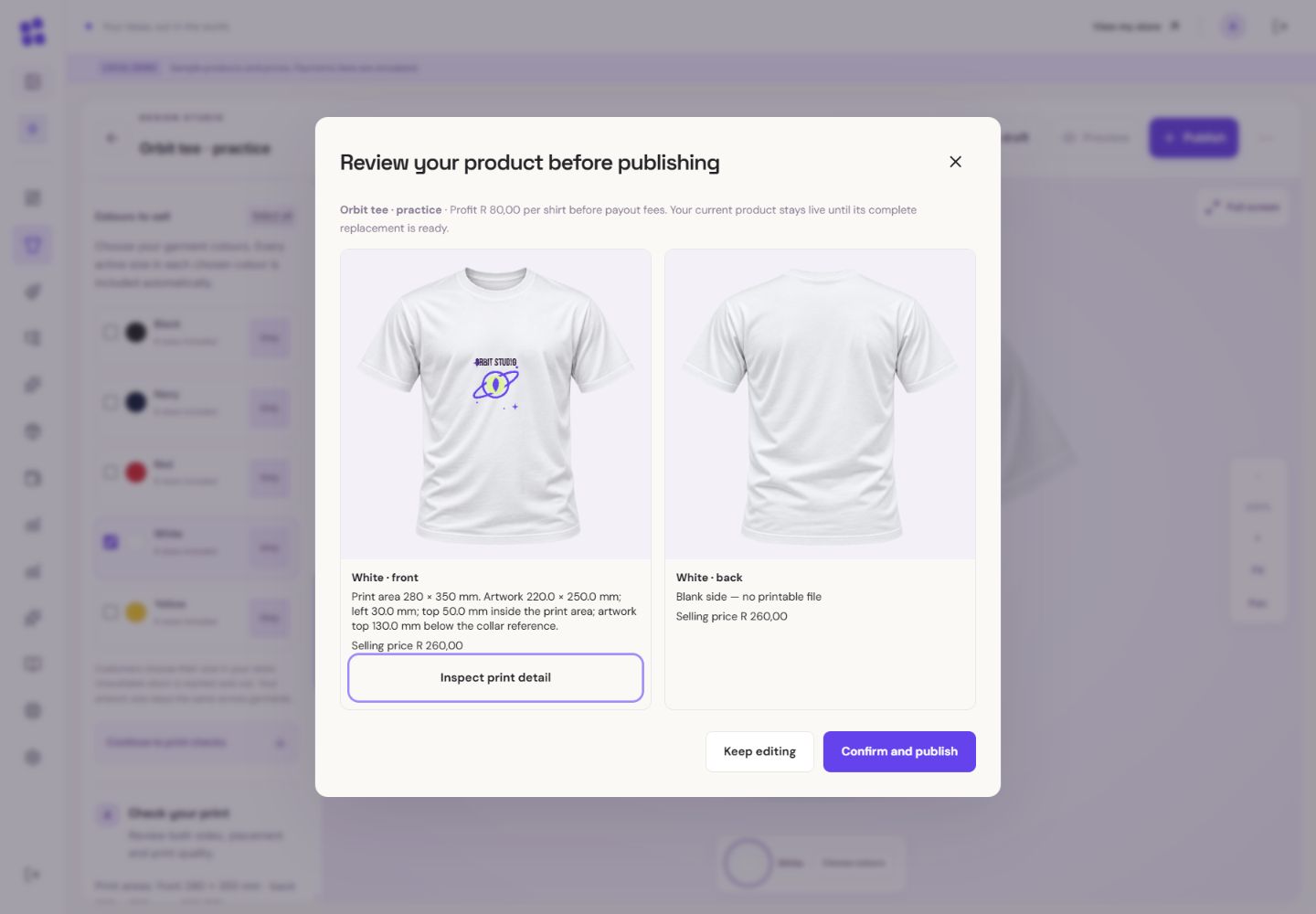
- 1Review the finished shirt photograph and actual artwork placement.
- 2Read the side label, physical dimensions and selling price before confirming.
What you should seeThe review lists both sides, colours, warnings and price before publication.
Go further 3 optional topics
You have the core task. Explore these extra tools whenever you need them.
If you see Offline, Save failed or a conflict, keep your work open and follow Retry or the comparison choices. Do not assume a spinner means persistence.
What you should seeYour local work stays available while you retry or resolve a conflict.
Preview as shopper shows how the product will look. It does not place an order.
What you should seeThe shopper preview opens without creating an order.
Confirm only when you want shoppers to see the change. Preparing means rendering is still underway; the previous complete image set stays available during an update.
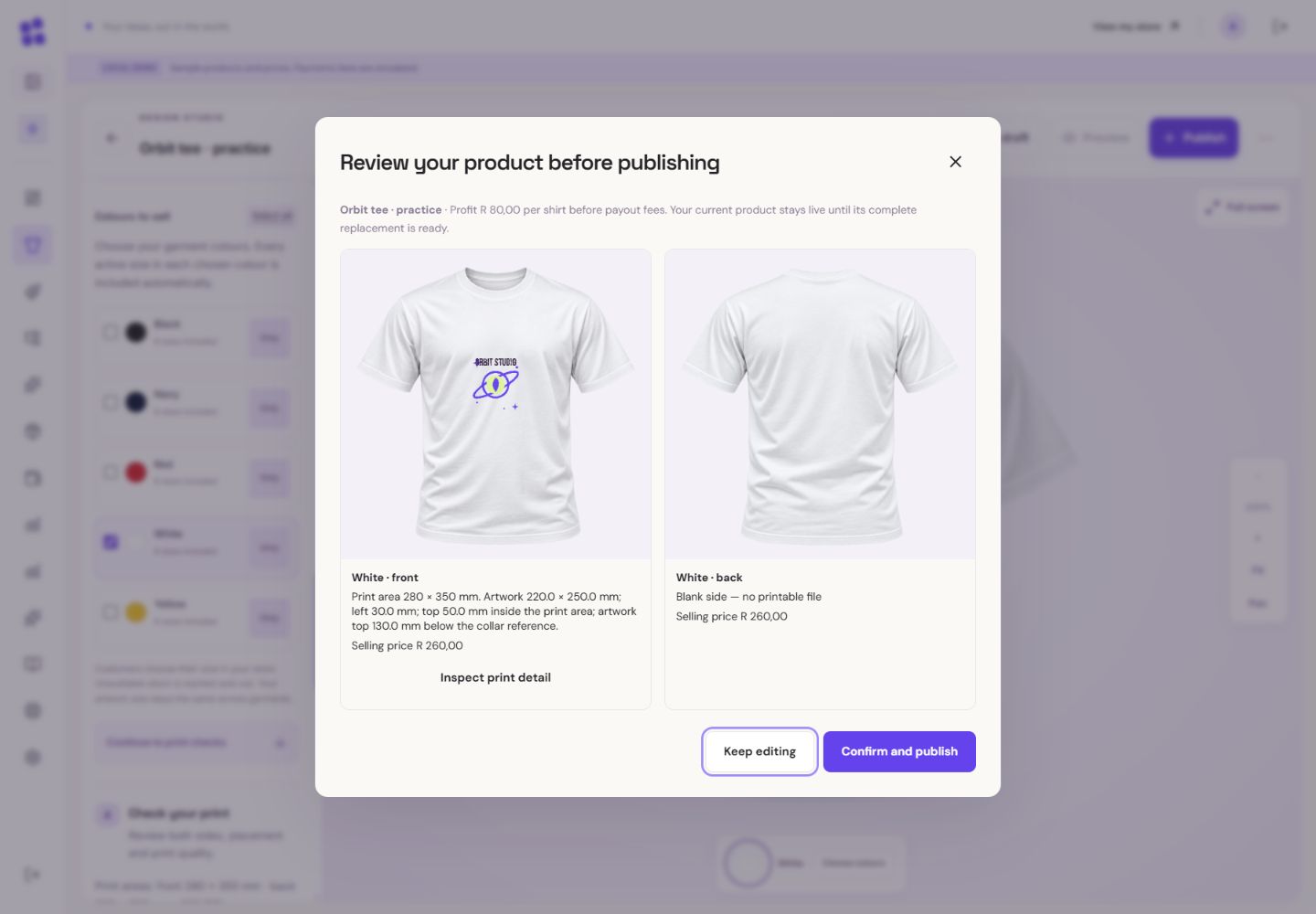
- 1The blank back is intentional. There is no printable artwork on this side.
- 2Only this final confirmation would publish. For practice, choose Keep editing.
What you should seeOnly confirmed publication changes the live product; older order files stay fixed.
Words made simple
- draft
- A private saved copy. Shoppers cannot see these changes yet.
- publish
- Make the reviewed changes visible on your public store.
Give it a try.
Open the publication review and close it. You can finish this lesson without publishing.
Open the product designer Opens separately. Paid and destructive actions are never required to complete a lesson.You want to keep work for tomorrow without changing the live shirt. What do you use?
Optional. No grades, no locked lessons.Ready to mark this one complete?
You choose when you have learned enough. No quiz score or business action is required.
Loading progress…
Sign in to save progress across devices