Build a page, one section at a time
Click a section, edit it and keep the preview close.
Add one Orbit Story section and enter your introduction. Keep the website draft private.
In this lesson 3 steps + optional extras
Orbit Studio practice files Free downloads
Use these original files or your own artwork. Keep the practice store private.
No purchase or AI generation required. Add wording as editable text.

Open Store design. Sections lists the current page; click a section in the list or preview to open its controls.
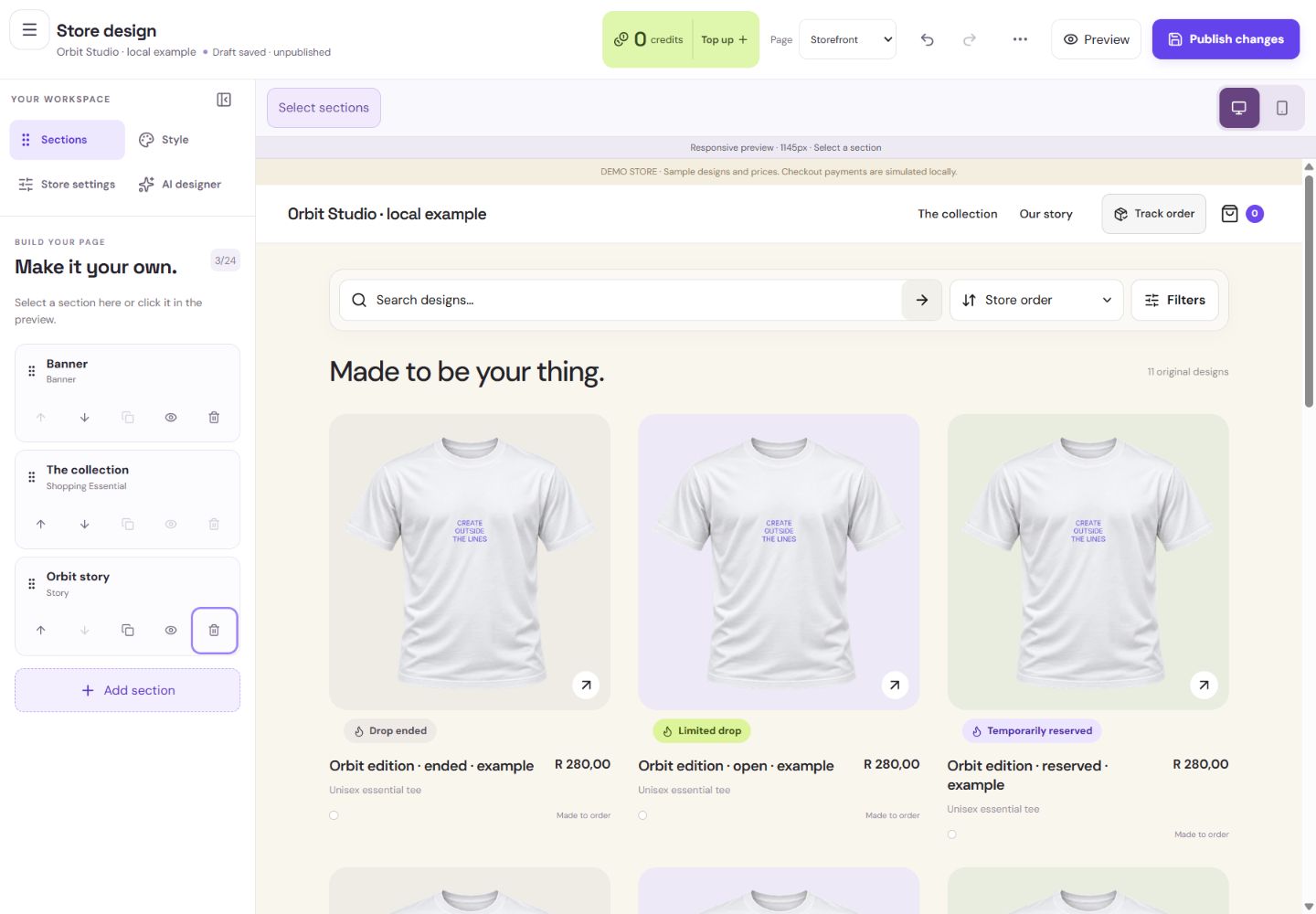
- 1Select this section to edit the Orbit introduction.
- 2Optional sections can be deleted. Undo reverses an accidental completed deletion.
What you should seeThe selected section is highlighted in the list and preview.
Choose Add section, then Story for this practice. Add the wording “Orbit Studio — everyday ideas, out of this world.” The complete section library is explained in Go further.
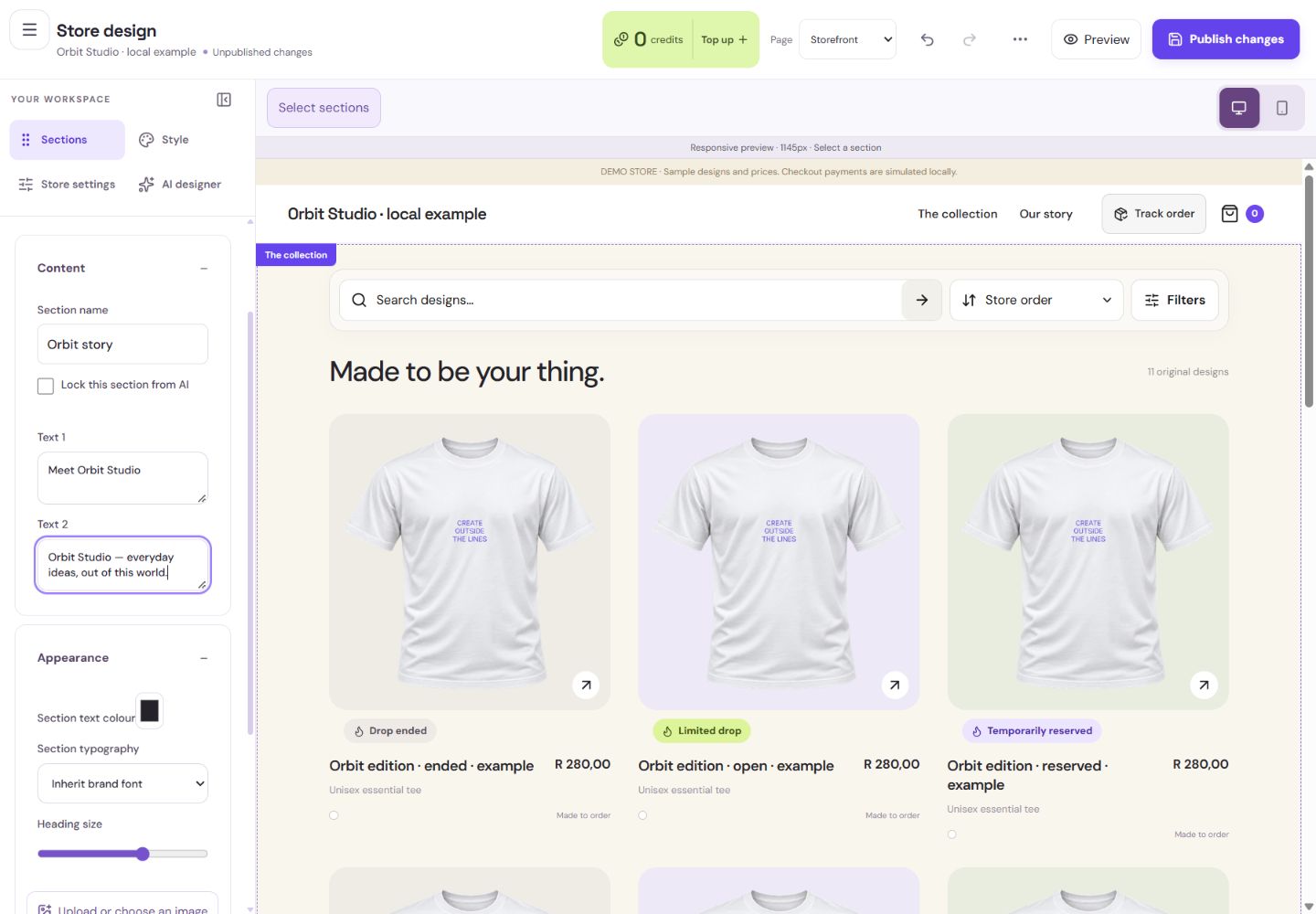
- 1Edit the heading as live website text.
- 2Use your own factual introduction. These practice words stay in a private draft.
What you should seeThe chosen section is added to your private page draft.
Rename sections, reorder them with arrows or drag controls, duplicate, hide or delete optional ones. Undo restores an accidental deletion.
What you should seeThe list and preview show your change; Undo reverses it.
Go further 4 optional topics
You have the core task. Explore these extra tools whenever you need them.
Use the real product, category or existing-drop picker where needed. A drop section does not create a new drop or grant Premium.
- 1Tell your own story using facts you provide.
- 2Feature an eligible existing drop. Adding the section does not create one.
- 3Control spacing without adding empty mystery blocks.
What you should seeThe section uses an actual product, category or existing drop.
Each page supports up to 24 content sections. Required shopping controls stay protected, and navigation/footer are separate shared regions.
What you should seeRequired shopping content remains available.
Check links when a section disappears. Keep one clear path from the compact menu to the banner and collection.
What you should seeAny removed-section links can be corrected before publishing.
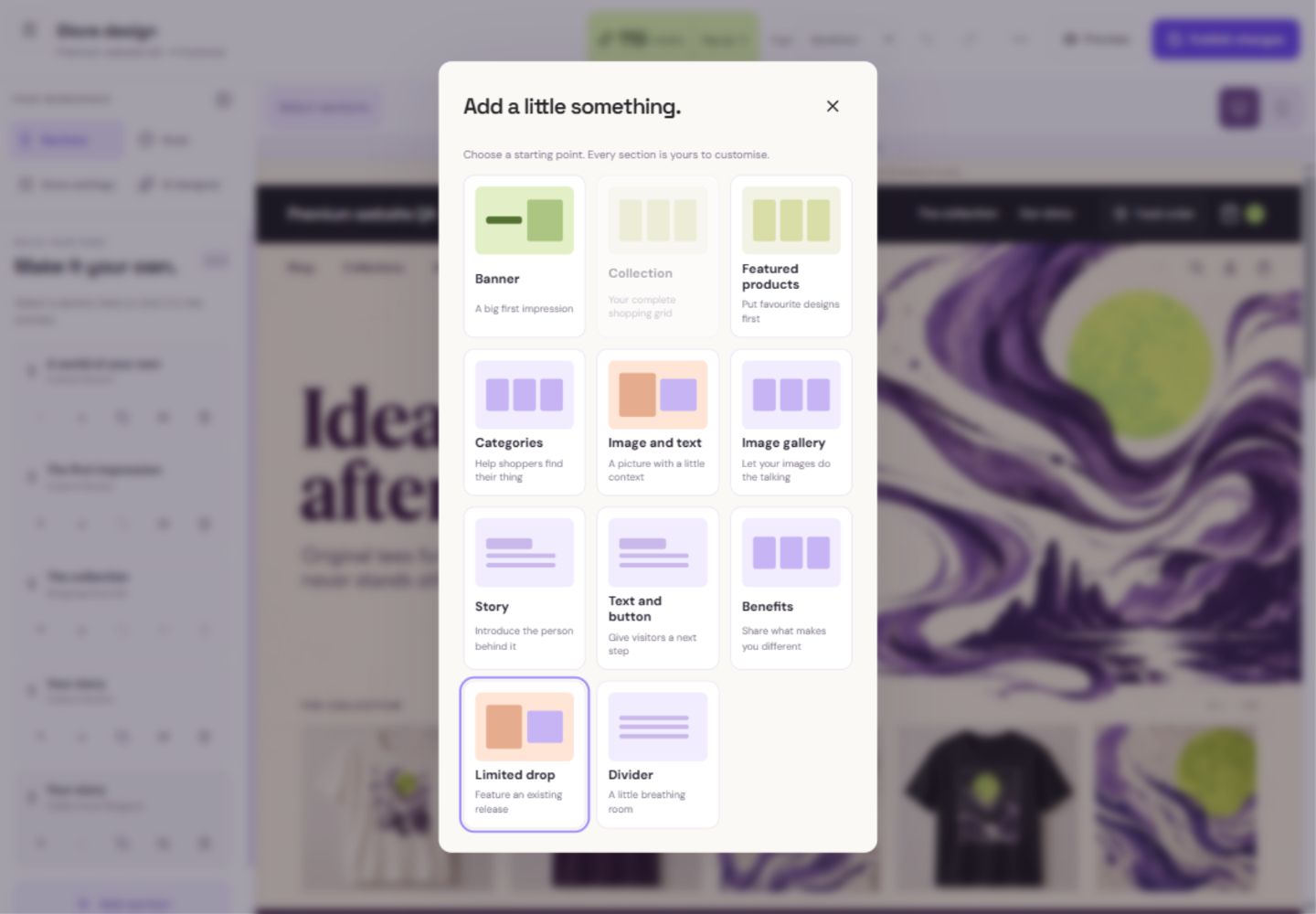
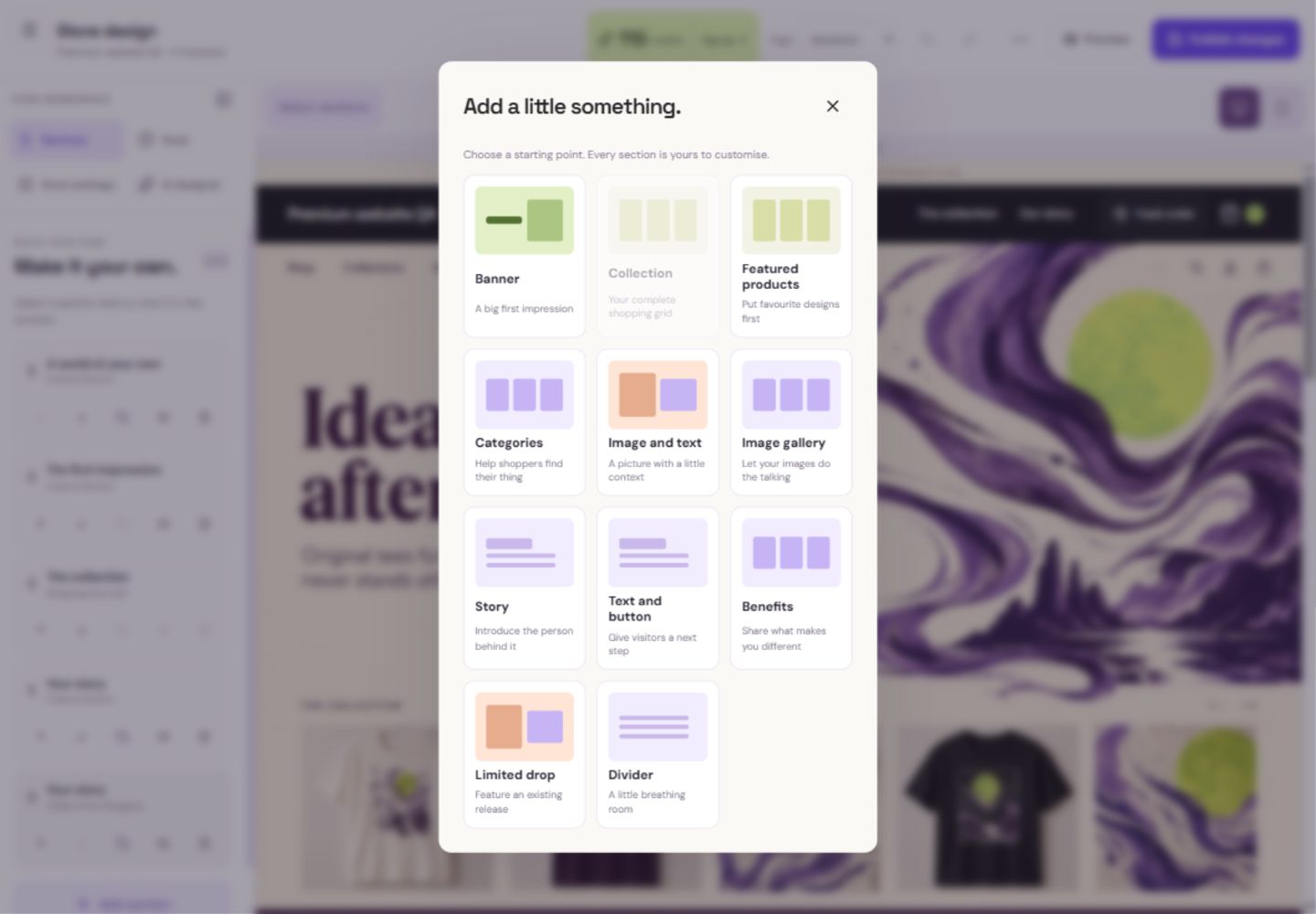
Choose sections by their job: Banner introduces the store; Collection is the protected shopping grid; Featured products highlights selected designs; Categories helps people browse; Image and text pairs a picture with wording; Image gallery shows several pictures; Story introduces you; Text and button gives one next action; Benefits lists your factual highlights; Limited drop shows an existing release; Divider controls separation.
- 1Add an image with live, editable wording and a button.
- 2Use real products; prices and availability stay authoritative.
- 3The required shopping grid stays protected.
What you should seeYou can choose each of the 11 section types by its purpose, while keeping real shopping controls intact.
Give it a try.
Add an optional Story section, enter the Orbit introduction, then try Undo on a harmless change. Keep the draft private.
Open Store design → Sections Opens separately. Paid and destructive actions are never required to complete a lesson.You accidentally delete an optional Story section. What helps immediately?
Optional. No grades, no locked lessons.Ready to mark this one complete?
You choose when you have learned enough. No quiz score or business action is required.
Loading progress…
Sign in to save progress across devices