Your workspace, without the overwhelm
Find the tools you need and leave the rest for later.
Find My products and the Orbit Studio store address. No account changes are needed.
In this lesson 3 steps + optional extras
Use My products for your designs, Store design for your website, and Orders for purchases. Think of the menu as rooms in your creative house.
What you should seeYou can distinguish shirt design, website design and orders.
Continue creating opens a recent design. Create a product starts a new one. You can explore without publishing anything.
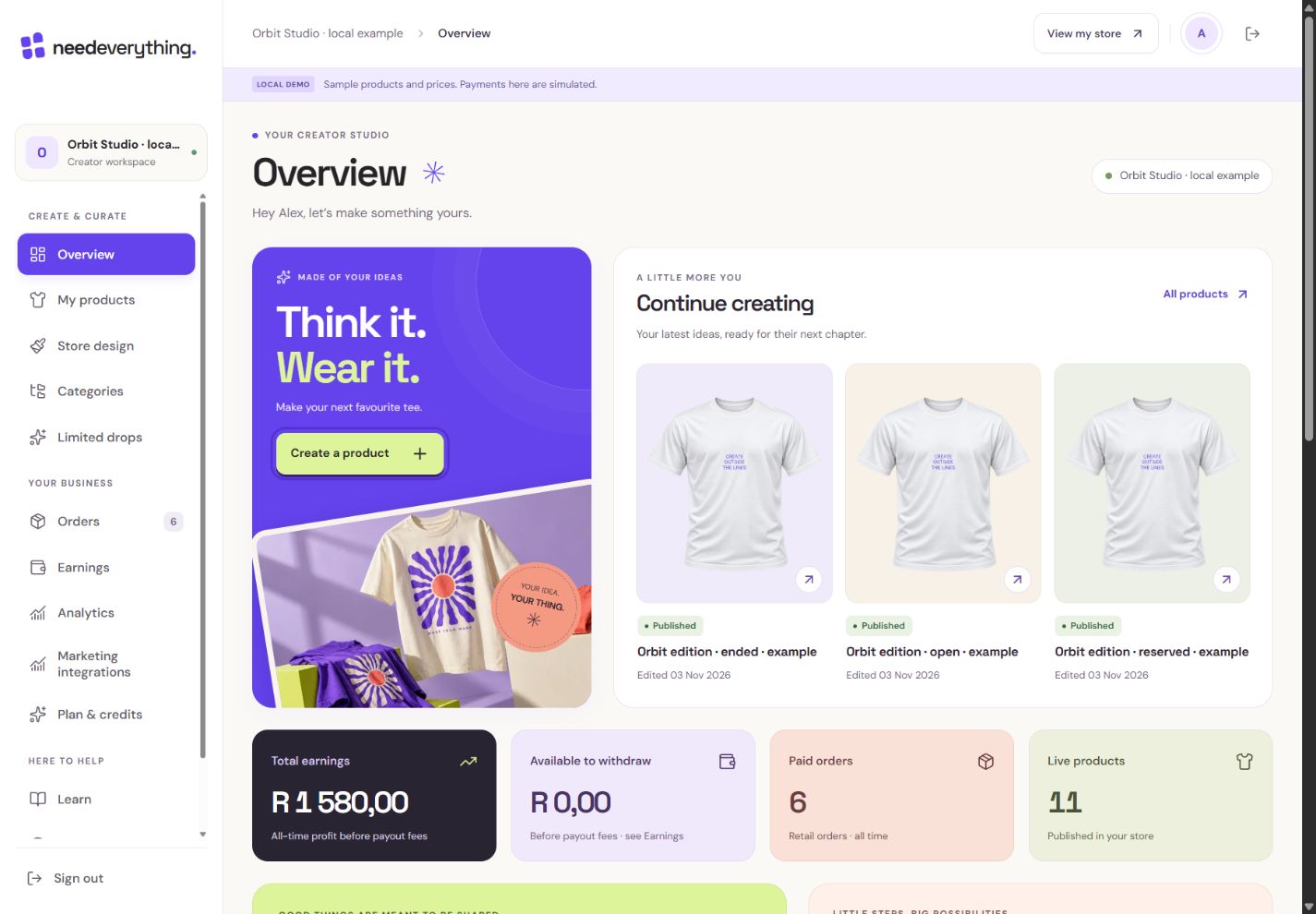
- 1Create a product begins a private shirt draft. This is our fictional Orbit Studio workspace.
What you should seeA recent draft opens privately.
Find your store address. Copy copies the link, Share opens sharing choices where supported, and Open lets you see the shopper-facing website.
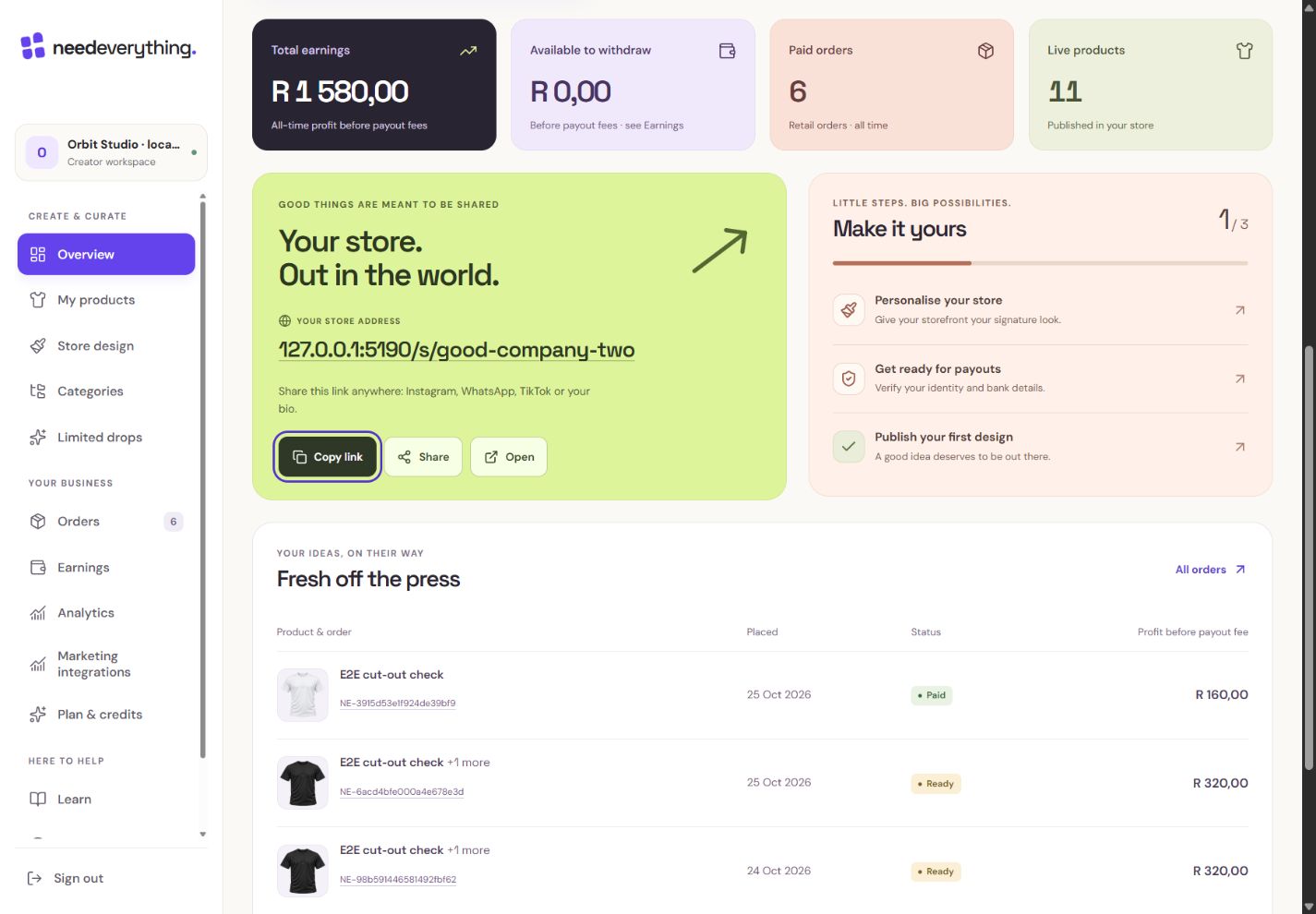
- 1This is the address shoppers use. It is separate from the editor URL.
- 2Copy the store address. Share and Open are available beside it.
What you should seeYou have a copyable link to your public store.
Go further 3 optional topics
You have the core task. Explore these extra tools whenever you need them.
Open Overview after signing in. The figures describe your own store; the Academy screenshots use fictional local examples.
What you should seeOverview identifies your store and its current figures.
The setup card points to unfinished essentials. Its checkmarks describe your store setup, while Academy badges only describe lessons you completed.
What you should seeYou can see which setup action comes next.
On a phone, open the menu button. Account settings and Sign out remain available there. You can return to Learn whenever you need a hand.
What you should seeYou know where to find account access and sign-out.
Words made simple
- publish
- Make the reviewed changes visible on your public store.
Give it a try.
Find My products and your store address. No changes needed.
Open Overview Opens separately. Paid and destructive actions are never required to complete a lesson.You want to change your banner. Where do you go?
Optional. No grades, no locked lessons.Ready to mark this one complete?
You choose when you have learned enough. No quiz score or business action is required.
Loading progress…
Sign in to save progress across devices